Build log · Landing page · Mobile bug
I built a 1-page app landing page with AI. Then my iPhone deleted all 19 of my cats.
The page looked great on my desktop. On my phone, every illustration was gone. Here’s the cause, the 10-minute fix, and where AI stopped being useful.
When you’re a solo builder with ten years of product design experience and zero desire to write boilerplate CSS from scratch, AI coding tools feel like magic.
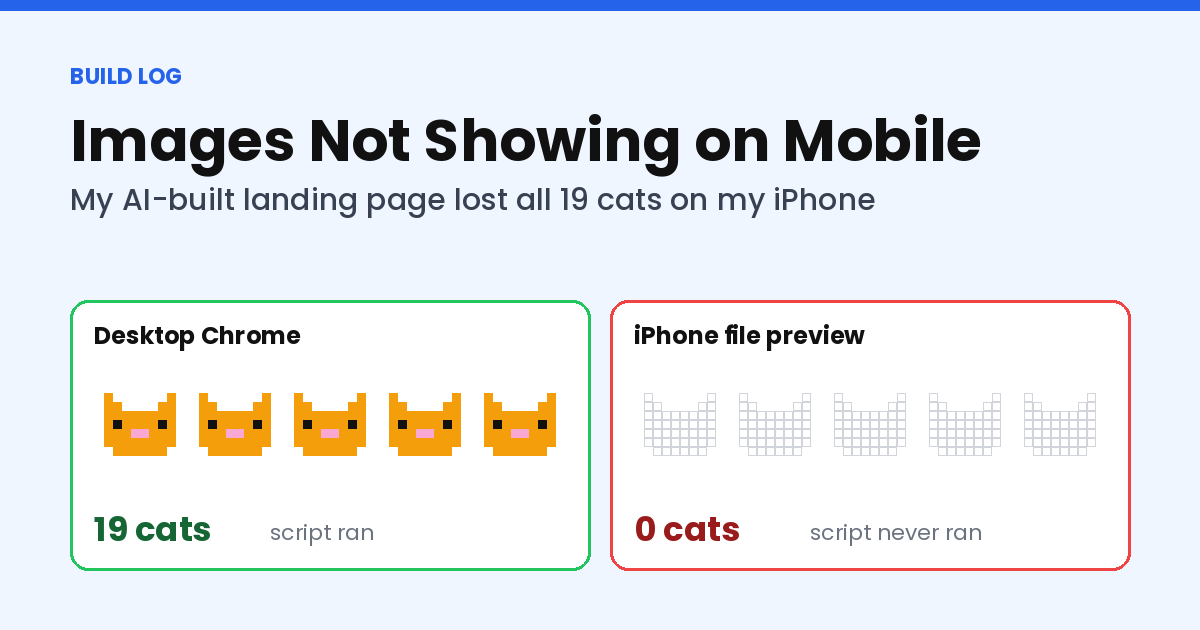
Yesterday I set out to build a clean, single-page checkout landing page for my Korean grammar app — a lightweight tool built on a $0 local engine instead of a paid LLM API, with a one-time $3.50 (4,900 KRW) price tag instead of another monthly subscription. On my desktop browser, the first draft looked great. Then I opened the exact same HTML file on my iPhone. Every single one of my 19 cat illustrations had vanished.
TL;DR / Quick Answer
Images not showing on mobile, but fine on desktop? On my AI-built landing page, all 19 SVG cats were injected by JavaScript into empty placeholders, and sections stayed at opacity 0 until a script ran. The iPhone file preview doesn’t run scripts, so the page looked half-empty. The fix took under ten minutes: inline every SVG in the HTML and scope the hide-then-reveal animation to a .js class.
Why 19 cats disappeared on mobile
At first I thought it was a CSS layout bug or a caching glitch. The text was there, the pricing table was there, even the buttons worked — just empty white space where the cats were supposed to sit.
Checking the source code revealed a painfully simple mistake:
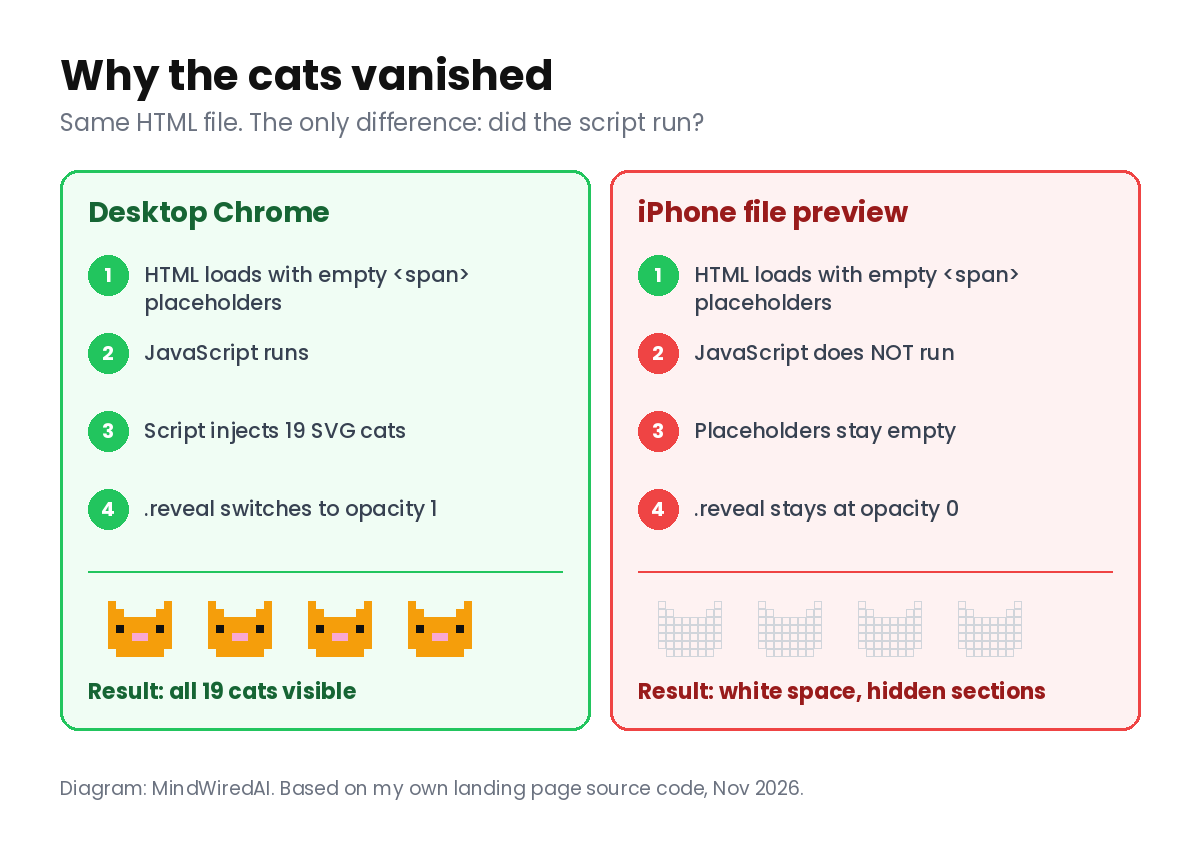
- The HTML left an empty
<span>placeholder for every illustration. - A JavaScript snippet injected the SVG cats into those placeholders on page load.
- The iPhone’s file preview (Quick Look, and the file viewers inside chat apps) shows an HTML file without running its scripts. No script, no cats.
It got worse. The page also used a .reveal class that kept sections at opacity: 0 until JavaScript switched them on. So anywhere scripts didn’t run, you got a broken, half-invisible page.
What the AI actually got wrong
Nothing in the code was “broken.” That’s the uncomfortable part. The AI generated code that looked clean in a local desktop preview and failed silently somewhere else. No error message, no warning — just white space. If you’ve ever had an app that works on your machine and breaks after you ship it, this is the same family of problem.
Here’s a simplified version of the pattern, before and after:
/* BEFORE: hidden for everyone until a script runs */
.reveal { opacity: 0; }
<span class="cat" data-cat="typing"></span>

/* AFTER: hidden only when scripts are confirmed to work */
.js .reveal { opacity: 0; }
<span class="cat"><svg ...>...</svg></span>
The 10-minute fix
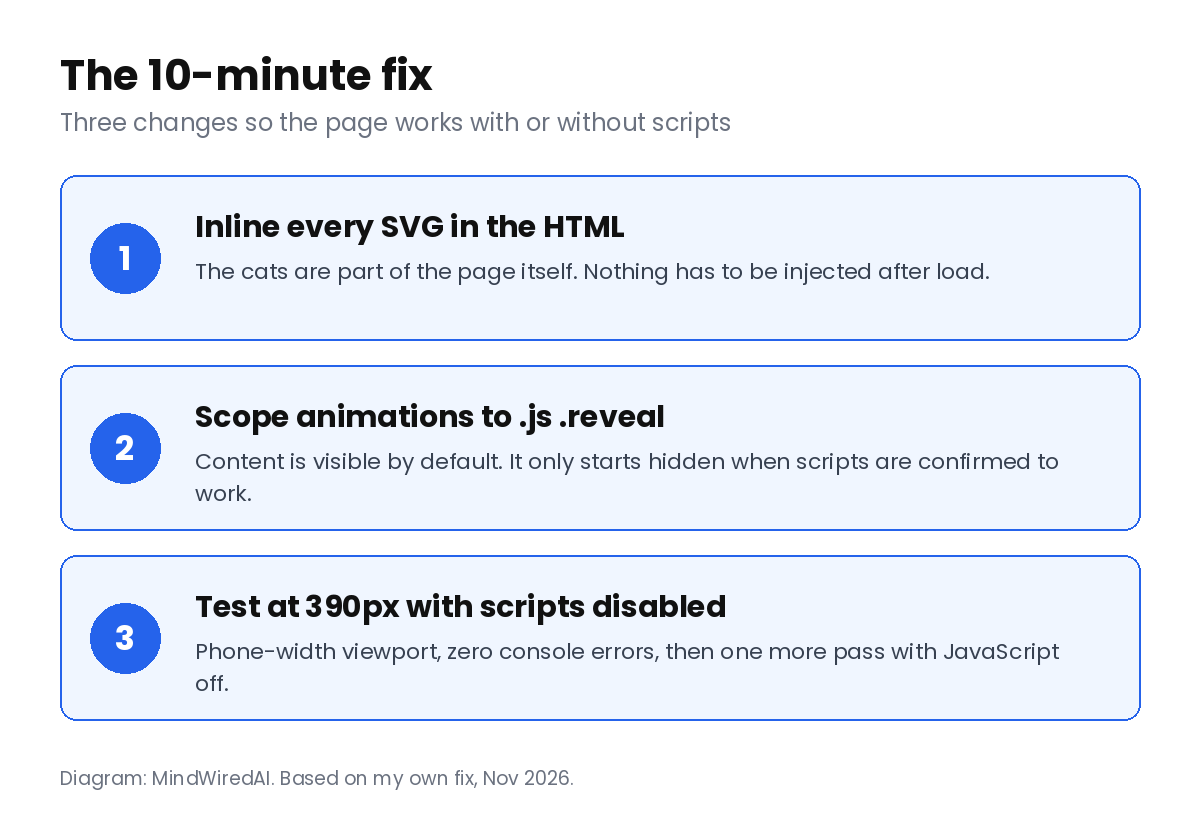
The technical fix took less than ten minutes:
- Inline every SVG statically into the HTML instead of injecting it with JavaScript.
- Scope animations to
.js .revealso anyone with blocked scripts still sees 100% of the content immediately. - Verify on a 390px mobile viewport with zero console errors — and once more with scripts disabled.
| What | Before (AI’s first draft) | After (my fix) |
|---|---|---|
| Cat illustrations | Empty placeholders, filled by a script | SVG written directly in the HTML |
| Section visibility | opacity 0 until a script runs | Visible by default, animated only with .js |
| Desktop Chrome | ✓ All 19 cats | ✓ All 19 cats |
| iPhone file preview (no scripts) | ✗ 0 cats, sections invisible | ✓ All 19 cats |
Then my designer brain kicked in
Once the cats came back, I looked at them properly — and that’s where AI hit its second limit.
The first pixel cats looked fine, but “fine” doesn’t make someone stop scrolling. I ended up rebuilding all 19 cats on a 32×30 chibi pixel grid with sparkly eyes, blush cheeks, and pink paw pads, plus six custom poses: typing, yawning, dozing off, dizzy, stretching, and jumping.
Even then, the first stretching pose came out looking more like a camel hump than a cat. I scrapped it and redrew the side profile from scratch.
3 lessons from building with AI as a designer
This small experiment showed me the exact boundary between AI speed and human judgment:
AI optimizes for the happy path. It assumes your user opens your page in a full desktop Chrome window, not on an iPhone from a file someone sent them.
Zero-script fallback still matters. Never hide core visuals or section opacity behind JavaScript when static HTML and SVG work out of the box.
Details are still your moat. AI can scaffold a landing page in five minutes. Knowing when a cat’s stretch looks weird — or when one charming visual beats ten lines of feature copy — is still on you.
The honest limitations
⚠️ What this post does and doesn’t prove
I hit this by opening the HTML file on my iPhone, where the preview doesn’t run scripts. A page hosted on a real URL and opened in Safari or most in-app browsers will usually run JavaScript, so you may never see this exact bug there. I tested one page on one iPhone. The fix still costs nothing and covers every case where a script is blocked, slow, or broken.
Who should actually care
Check this today if: AI built your landing page and you send the HTML file to clients, friends, or yourself to review on a phone.
Worth a look if: your page fades sections in on scroll. Ask your AI tool whether the content is visible when JavaScript is off.
Skip if: your images are plain <img> tags or inline SVG and nothing starts hidden.
If you’re not a developer, you can paste this into your AI tool as-is: “Does any content on this page depend on JavaScript to appear? Make everything visible without scripts and keep the animations as an extra.” If the answer comes back with an error, here’s how to read error messages when you can’t code.
Frequently Asked Questions
Why are my images not showing on mobile but fine on desktop?
One common cause is that the images aren’t really in your HTML. A script adds them after the page loads. If that script doesn’t run, as in an iPhone file preview, you get empty space. Open your page source and check whether the images are written there or inserted by JavaScript.
How do I test my landing page with JavaScript turned off?
In desktop Chrome, open DevTools, press Cmd+Shift+P (Ctrl+Shift+P on Windows), type “Disable JavaScript,” and reload. Set the viewport to 390px wide to imitate a phone. If text, images, or whole sections disappear, your page depends on scripts to show its content, and that’s the thing to fix.
Should I inline SVG or load it with JavaScript?
For illustrations that matter to the page, inline the SVG in the HTML. It shows up everywhere, with or without scripts, and there’s nothing extra to load. Use JavaScript for the optional layer, like animation, and make sure the page still looks complete when that layer never runs at all.
The bottom line
AI built my landing page in minutes and hid all 19 cats behind a script I never asked for. If your images are not showing on mobile, look at how they get onto the page before you touch the CSS.
Your next step: send your page’s HTML file to your own phone and open it. If anything is missing, you’ve found the same bug in one minute.
Next up, I’m finalizing the checkout flow and using this page as my first portfolio piece for building 1-page landing pages for other solo developers. If you’re building with AI right now, where do you still find yourself stepping in to fix things by hand?
Related free AI guides
- Build log: replacing a paid LLM API with a local engine
- Why your app works locally but not after deploy
- What to do when AI breaks your working code
Published Nov 2026. How this post was made: I built the page, hit the bug, and wrote this post myself. Claude edited it for structure and drew the diagrams. I tested on one landing page and one iPhone.