Claude Opus 4.8 Settings Guide: Most People Are Using It Wrong
Switching to Opus 4.8 without changing your settings is like buying a sports car and leaving it in second gear. Here’s the full setup guide.
When a new Claude model drops, most people do the same thing: switch the model selector and keep everything else identical. With Opus 4.8, that’s exactly the wrong move.
Opus 4.8 introduced a new variable that didn’t exist in earlier models — the effort parameter — and how you configure it changes the quality, speed, and cost of every single response. The prompts that worked on Opus 4.6 also need updating. Two people using identical hardware can get meaningfully different results depending on their setup.
The core insight: Opus 4.8 isn’t just “a better Claude.” It’s a Claude that requires different settings to unlock its actual performance. This guide covers what to change and why.
The Three Variables That Actually Matter
Most people only think about one of these. All three matter.
| Variable | What it controls | Real-world impact |
|---|---|---|
| Model | Opus 4.8 itself | Baseline reasoning, coding quality, honesty |
| Effort | How deeply it thinks | Speed, cost, output depth |
| Workflow | How you structure the task | Whether large tasks actually complete well |
The Effort Parameter: Your Most Important Control
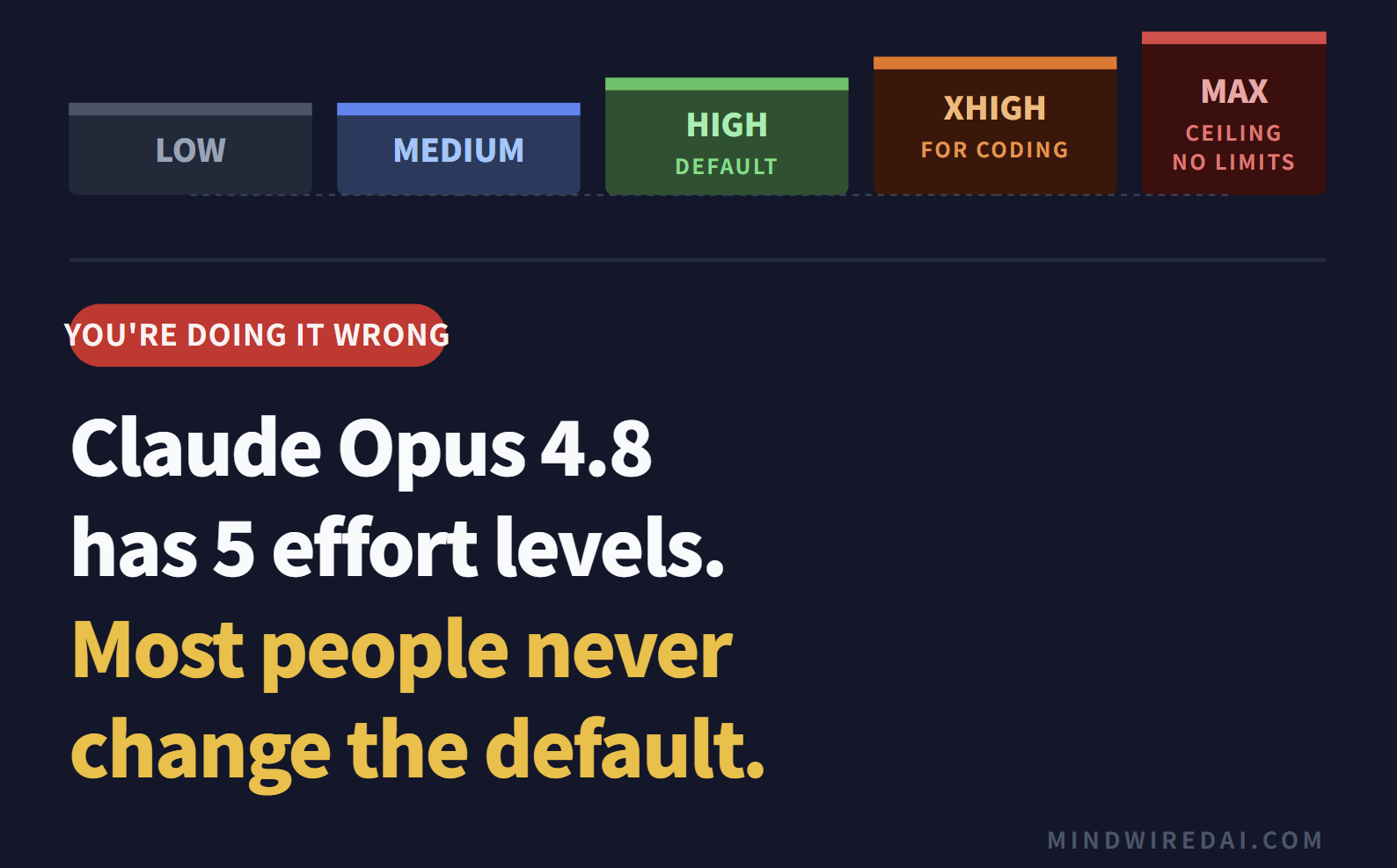
Effort is new to the Opus 4.8 generation and it’s the lever most people ignore. It directly controls how much reasoning Claude does before responding — and therefore how good, how slow, and how expensive each response is.
Anthropic’s official documentation puts it clearly: at higher effort settings, Claude thinks more frequently and more deeply. At lower effort settings, it responds faster and uses fewer tokens. The default across all surfaces — claude.ai, API, Claude Code — is High.
There are five levels. Here’s what each one actually means in practice.
Quick reference: effort by task type
| Task | Effort |
|---|---|
| Short sentence edits, quick summaries | Low / Medium |
| Translation, classification, light rewrites | Medium |
| Content planning, research summaries | High |
| Long document analysis | High / XHigh |
| Code debugging, multi-file work | XHigh |
| Code review (full coverage) | XHigh |
| Large-scale refactoring / full feature build | XHigh / Max |
| Simple Q&A, quick lookups | Low / Medium |
| Complex decision-making with tradeoffs | XHigh / Max |
Prompt Structure: What Changed in 4.8
Opus 4.8 follows instructions more literally than previous models. That’s mostly an improvement, but it creates failure modes if your prompts rely on Claude inferring what you mean.
1. Tell it what you want, not what to avoid
Negative instructions (“don’t be vague,” “don’t use AI-sounding language”) leave the desired behavior undefined. With a model that interprets instructions literally, undefined = whatever Claude decides.
❌ Vague negatives
“Don’t be too long.”
“Don’t make it sound like AI.”
“Don’t be generic.”
✅ Concrete positives
“Keep it to 5 bullet points, 2 sentences each.”
“Write for a practitioner who can act on it immediately.”
“Prioritize specific actions over general advice.”
2. Include the “why” behind your request
Opus 4.8 uses context to calibrate output. Giving it purpose produces better results than giving it constraints alone.
❌ No context
“Make this sentence more natural.”
✅ Context + purpose
“This is the opening hook for an Instagram carousel targeting freelancers. Goal: stop the scroll. Avoid hype. Rewrite it so it reads like something a peer would say.”
3. The universal prompt template
This structure works for almost any substantive task. Copy and adapt it.
Goal:
[The end result you actually want]
Context:
[Current state, background, the problem you’re solving]
Output format:
[Format, length, tone, intended use]
Success criteria:
[How you’ll know it worked]
Process:
1. Diagnose the current situation first.
2. Propose a plan before executing.
3. Execute in steps if the task is large.
4. End with a review checklist.
Constraints:
[Forbidden phrases, brand tone, technical limits, scope limits]
Tool Use: Tell It When to Search
One of the documented behavioral changes in Opus 4.8 is that it tends to reason through problems itself before reaching for external tools. For most tasks, that’s a feature — fewer unnecessary web searches, cleaner reasoning chains. For tasks that genuinely require current information or file access, it’s something you need to work around.
❌ Ambiguous
“Summarize the latest news on this topic.”
✅ Explicit
“This task requires current information. Check an authoritative source before responding. Label verified information and inferred information separately.”
For code tasks specifically:
Read the relevant files before answering.
Don’t guess at the cause. Distinguish between what you confirmed from the actual code versus what you’re hypothesizing.
Claude Code: The Safe Workflow
Dropping a large task into Claude Code and saying “fix this” is how you get confident-sounding changes that break something else. The right workflow is slower upfront and faster overall.
The copy-paste starter prompt for Claude Code tasks:
Goal: Solve [feature/bug] in this project.
Process:
1. Read the relevant files. Understand the current structure before doing anything.
2. Do not modify any code yet. Show me your change plan first.
3. If the scope is large, break it into smaller subtasks.
4. After I approve the plan, modify only the necessary files.
5. After changes: summarize what changed, and flag any remaining risks.
Success criteria:
– Existing functionality is not broken.
– Every change has a clear reason.
– Code is runnable.
– If risks remain, surface them — don’t hide them.
If You’re Migrating from Opus 4.6 or Earlier
Some prompts that were standard practice for older models actively hurt performance on Opus 4.8. Here’s what to clean up.
Remove these
Anti-laziness prompts — added to push older models to complete tasks. Opus 4.8 doesn’t need them and they can cause over-generation.
“Keep going.” / “Don’t stop.” / “Finish everything.”
“Don’t be lazy.” / “Report back every 3 tool calls.”
Add these
“Stay within the scope of this task. Don’t expand without asking.”
“When uncertain, flag it — don’t guess.”
“This instruction applies to every section, not just the first.”
“Show the plan before making changes. After changes, separate what changed from what’s still at risk.”
Token Cost: How to Keep It Reasonable
The biggest source of token waste with Opus 4.8 isn’t the model — it’s the workflow. Vague first prompts that require 5 follow-ups cost more than a single well-structured prompt upfront.
- Short tasks → Low or Medium
- General work → High (default, leave it)
- Coding and agents → XHigh
- Max → only when XHigh underdelivered
- First prompt: include goal, constraints, and success criteria upfront
- If output is shallow: check effort level before editing your prompt
“Don’t suggest anything outside the current scope.”
“Show the plan first. Don’t execute until I approve.”
“Skip background explanation. Give me what I need to decide and the steps to take.”
The Five Things That Actually Matter
Everything in this guide reduces to these five habits:
Match effort to task complexity. Don’t run everything at Max. Don’t run everything at High. The right level saves money and often improves output.
Give it the goal and success criteria before the task. Claude performs better when it knows what “good” looks like.
Describe the desired outcome, not what to avoid. Positive instructions outperform negative ones on this model.
Explicitly trigger tool use when you need current information. The model won’t always reach for search on its own.
For large tasks: plan → execute → review. Never skip the plan step.
Default settings cheatsheet
General work → High
Coding / agents → XHigh
Large tasks → XHigh → Max if needed
Short / repetitive → Medium
Shallow output? → Check effort before editing the prompt