The Project Manager’s AI Prompt Playbook: 15 Ready-to-Use Prompts That Actually Work
Status reports, UAT emails, retrospective questions, issue escalations — if you’re still writing these from scratch,
you’re spending hours on work that AI can handle in seconds. Here’s the complete copy-paste prompt library.
Project managers live in a brutal paradox: the more complex the project, the more time you spend
writing about the project instead of actually running it. Status update emails.
Meeting summaries. Issue logs. Retrospective templates. Stakeholder escalations.
None of that requires your expertise. It requires your time — and that’s exactly what AI is designed to give back.
Google recently published an official prompt guide for Gemini in Google Workspace, and the project
management section is genuinely useful. I’ve pulled out every prompt, added real context for how to
use each one, and organized them into a playbook you can actually work from.
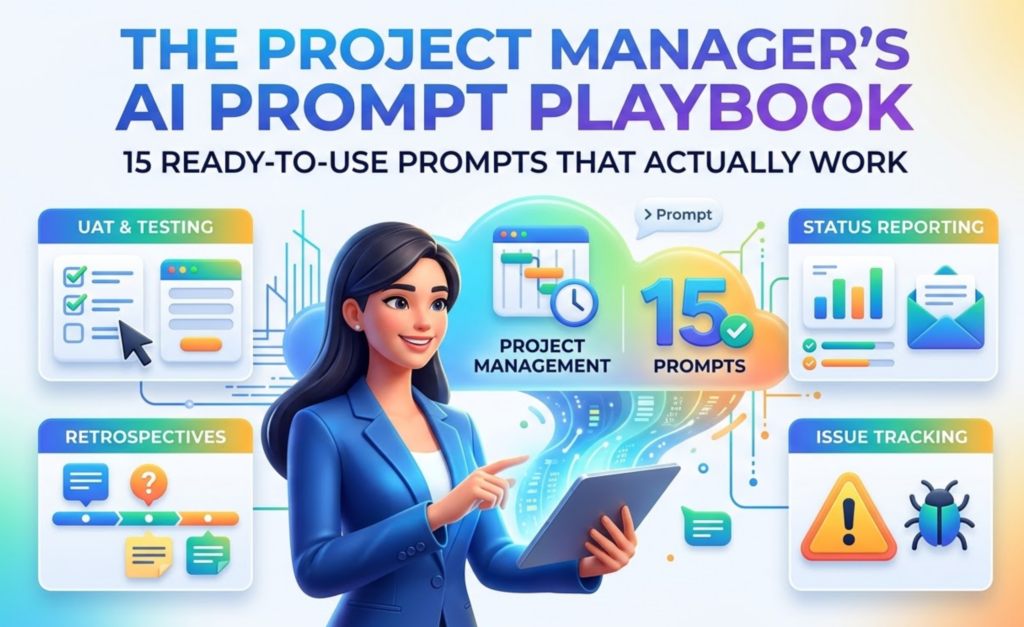
15 copy-paste prompts across 4 core PM workflows: UAT & testing, project status reporting,
retrospectives, and issue tracking. All prompts work in Gemini (gemini.google.com),
Google Docs, Gmail, or Google Sheets — whichever fits your stack.
First: The 4-Part Framework Behind Every Good PM Prompt
Before we get into the prompts, it’s worth understanding the framework. Every prompt in Google’s
official guide is built around four elements. You don’t need all four every time, but using two or
three consistently makes a dramatic difference in output quality.
One more thing worth knowing: the average effective prompt is around 21 words. Most people write
prompts of fewer than 9 words. More context genuinely produces better output — but you don’t need
an essay, just specificity.
Workflow 1: UAT & Testing
User acceptance testing is one of the most documentation-heavy phases of any project.
AI handles the scaffolding so you can focus on the actual testing.
Prompt 01
Generate a UAT Table
Your team just finished building a new feature or form. Instead of drafting test cases manually, start with this:
Replace the bracketed section with the specific feature. Add columns if your QA process requires them.
Google Sheets
Prompt 02
Send the UAT Handoff Email
Once the test table is ready, you need to hand it off to whoever’s running the testing. Keep the conversation going in Gemini:
Gmail
Prompt 03
Build a Workback Schedule for a Technical Launch
For technical project managers managing a software release, this prompt generates a full workback calendar from your delivery date:
I am a technical project manager at [company] overseeing [project name and brief description].
Project scope: [describe scope]
Goals: [list goals]
Deliverables: [list deliverables]
Budget: [budget]
Delivery date: [date]
Help me create a workback schedule to keep the team on track. Include dates for key milestones and demos.
The more detail you provide here, the more accurate the schedule. Drop the output into Google Sheets and add owners to each milestone.
Google Sheets
Workflow 2: Project Status Reporting
Status updates are the most repetitive communication in any PM’s week.
These prompts eliminate the blank-page problem entirely.
Prompt 04
Summarize a Meeting Transcript into Action Items
You have a call transcript or meeting notes. Here’s how to turn it into a structured summary your team can actually act on:
Summarize this call transcript in a short paragraph. In bullet points, highlight the action items, decisions made, and the owner responsible for each item.
[paste transcript or meeting notes here]
Prompt 05
Create a Reusable Status Update Template
Stop rewriting the same weekly email. Generate a template once and reuse it:
– Summary of key accomplishments this week
– Challenges or blockers encountered
– Top three priorities for next week
– Any decisions needed from leadershipUse a professional but concise tone.
Gmail
Prompt 06
Write a Team Celebration Email
Your team hit a major milestone. Don’t let it pass without acknowledgment — but don’t spend 20 minutes on the email either:
Prompt 07
Summarize a Long Project Document for Leadership
When you need to distill a complex document into something a VP will actually read:
Summarize this document in two paragraphs for [executive / leadership team]. Include high-level information about the project’s goals, main contributors, outcomes, and any key successes or failures. Use a formal tone and avoid technical jargon.
[paste or reference the document]
Workflow 3: Project Retrospectives
Retrospectives are essential but time-consuming to structure from scratch,
especially when you need cross-team input. AI does the heavy lifting on the framework.
Prompt 08
Generate Cross-Team Retrospective Questions
The hardest part of a retro is getting the right questions. This prompt generates a complete cross-functional investigation guide:
– What worked well and why
– What didn’t work and the root cause
– Specific process breakdowns
– Technical issues or blockers
– Communication gaps
– Decisions that had unexpected impactFormat as a numbered list.
Prompt 09
Synthesize Retro Feedback into a Report Draft
After collecting input from multiple teams, use this to structure the final report:
Summarize the following team feedback into a two-paragraph executive overview. Include: the project’s original goals, main contributors, final outcomes, and the top three lessons learned.
[paste compiled team responses here]
Prompt 10
Write a Retrospective Invite Email
Getting busy stakeholders to actually attend a retro requires the right ask:
Workflow 4: Issue Tracking & Escalations
When something goes wrong mid-project, you need standardized, professional communication — fast.
These prompts give you ready-to-send templates before you even know what issues you’ll face.
Prompt 11
Build an Issue Tracker Spreadsheet
Set this up at the start of every project, not after problems appear:
– Issue ID
– Description
– Date identified
– Priority (High / Medium / Low)
– Status (Open / In Progress / Resolved)
– Assigned owner
– Action items for resolution
– Target resolution dateAdd sample data in the first two rows as examples.
Prompt 12
Draft an Issue Announcement Email
When a problem emerges and you need to notify the team immediately:
– A clear description of the issue
– Root cause (if known)
– Impact on the project timeline or deliverables
– Proposed solution or workaround
– Estimated timeline for resolutionUse a calm, professional tone that conveys urgency without alarm.
Prompt 13
Write a Critical Issue Escalation Email
When an issue needs to go up the chain, the framing matters as much as the facts:
– A one-sentence summary of the issue
– Business impact if not resolved by [date]
– Proposed solution and what you need from them
– Decision deadlineUse a direct, confident tone. Keep it under 200 words.
Gmail
Prompt 14
Draft a Project Kick-Off Agenda
A strong start prevents most mid-project issues. Generate your kick-off structure in seconds:
– Project overview and goals
– Roles and responsibilities
– Timeline and key milestones
– Risks and dependencies
– Communication norms and tools
– Q&AFormat as a table with time, agenda item, owner, and notes columns.
Google Slides
Prompt 15
Create a Stakeholder Communication Plan Template
Define how you’ll keep different audiences informed before the project starts:
– Stakeholder group
– Communication type (status update, escalation, milestone notice, etc.)
– Frequency
– Channel (email, Slack, meeting, etc.)
– Owner
– NotesInclude at least 6 stakeholder groups typical to [software / construction / marketing / insert type] projects.
Gemini in Docs
How to Get Better Outputs Every Time
A few things that consistently improve AI output quality for PM work specifically:
Replace every bracket before running the prompt. The more specific you are — actual project names, real deadlines, named stakeholders — the more usable the output. Generic inputs produce generic outputs.
Iterate, don’t restart. If the first output is 70% right, don’t clear the conversation and start over. Follow up: “Make the tone more direct,” “Add a section for risks,” “Shorten this to 100 words.” Refinement is faster than regeneration.
Use the output as a first draft, not a final product. AI-generated project communications are excellent starting points. They rarely need to go out unedited — but they remove the hardest part of writing, which is starting.
If you use Google Workspace, you can access Gemini directly inside Docs, Gmail, and Sheets via the “Help me write” (Writing Assistant) button. For more complex or iterative work, gemini.google.com gives you a full conversational interface where previous context carries across prompts.
Want the Full Prompt Guide 101?
Google’s complete Gemini Prompt Guide 101 covers every role — marketing, HR, sales, executives, and more. I’ve made the full English version available to download below.
⭐ Anthropic Just Dropped a Free AI Academy (And It Will Save You $2,000 on Bootcamps)



3 Comments
ev8l1j
xrrfdh
0emnt3