Welcome to the complete guide to installing OpenClaw on Hetzner.
OpenClaw Hetzner Install Step-by-Step Guide
Ever thought, “Man, I wish I had my own personal AI assistant”? Imagine hooking up a brilliant AI like Claude directly to your Telegram app—creating a personal helper that’s in your pocket 24/7, ready to assist whenever you need it.
If words like “server,” “coding,” or “terminal” make you want to run for the hills, you’re in the right place. This OpenClaw Hetzner install guide breaks everything down super simply so anyone can follow along. Let’s build something awesome together! 🚀
❗ Important
Before proceeding, we strongly recommend reading the official Openclaw documentation carefully. Make sure you fully understand how the program works before starting.
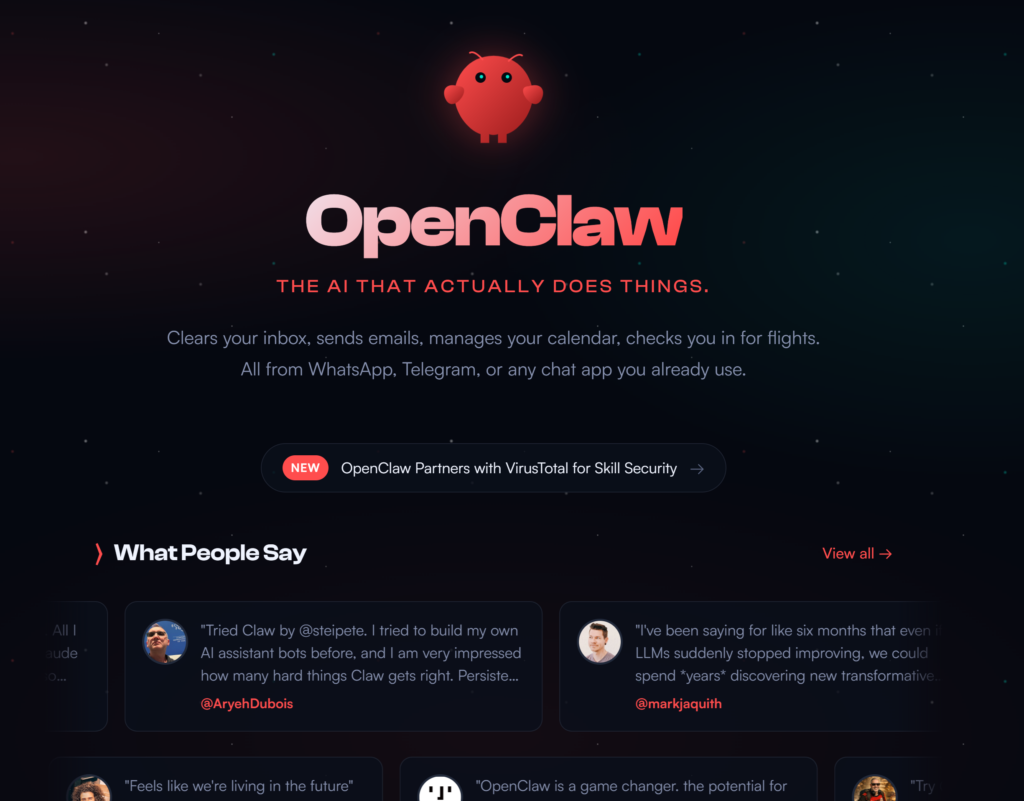
Checklist: Just 3 Things You Need!
OpenClaw Hetzner Install Guide
Just like gathering ingredients before cooking, here’s what you need to get your bot running:
- Hetzner Account: Hetzner is a German company that rents you a “virtual computer” (server) so your bot can run 24/7. It costs about the same as a fancy coffee (around $4-5)! (Click here to sign up)
- Telegram App: Where you’ll actually chat with your new bot.
- Anthropic API Key: The “key” that unlocks Claude’s brilliant brain.
Step 1: Rent a “Virtual Computer” (OpenClaw, Hetzner)
OpenClaw Hetzner Install Guide
- Hetzner Cloud Console: Log into your account.
- Add a new project and name it “Openclaw”.
- Location: Choose Germany (Nuremberg or Falkenstein).
- Image: Select Ubuntu 24.04.
- Server Type: Choose CX33 (4 vCPU, 8GB RAM). It costs around €5.49/month.
- Networking: Make sure IPv4 is enabled.
- Add SSH Key:
- Run:
ssh-keygen -t ed25519 -C "[email protected]" - View key:
cat ~/.ssh/id_ed25519.pub - Paste the copied string into the SSH key field.
- Run:
- Setup: Click [Create & Buy]. After a moment, you’ll see your IPv4 address.
Step 2: Connect to Your Server
Alright, now let’s step inside that computer we just rented in Germany.
- SSH Connection: Open Terminal (Mac) or PowerShell (Windows). Run:
ssh root@YOUR_SERVER_IP(If you get a yes/no question, type ‘yes’ and hit Enter!) - If you see
root@openclaw:~#, you’re officially in! 🎉
Step 3: Type the Magic Spells (Commands)
Copy and paste these commands one line at a time, then hit Enter:
- Update the system:
apt update && apt upgrade -y - Install Node.js 20:
curl -fsSL https://deb.nodesource.com/setup_20.x | sudo -E bash -sudo apt-get install -y nodejs - Install OpenClaw:
npm install -g openclaw - Run the setup wizard:
openclaw wizard --install-daemon
Step 4: Build Your Telegram Bot & Get the “Brain”
❗ Cost Warning
The Anthropic API charges based on usage.
Depending on your chat volume, costs may be higher than expected. We strongly recommend setting usage limits at console.anthropic.com before getting started.
- Create an empty bot: Start a chat with @BotFather on Telegram.
- Send:
/newbot - Give your bot a name and username (username must end with ‘bot’).
- Copy the API token you’re given.
- Send:
- Get your User ID: Chat with @userinfobot to get your unique user ID. Copy the ID!
- Get Claude’s brain: Log into the Anthropic Console. Generate a key starting with
sk-ant-and copy it!

Step 5: Hand the Ingredients to the Wizard!
Go back to your terminal and paste these when prompted:
- Telegram Bot Token
- Your User ID
- Anthropic API Key
Final Test: Validation ✅ Open your bot on Telegram and send “Hey! Who are you?” Did it reply? YES!!! 🎉 Congratulations! You’ve built your own AI personal assistant! 🥳🥳
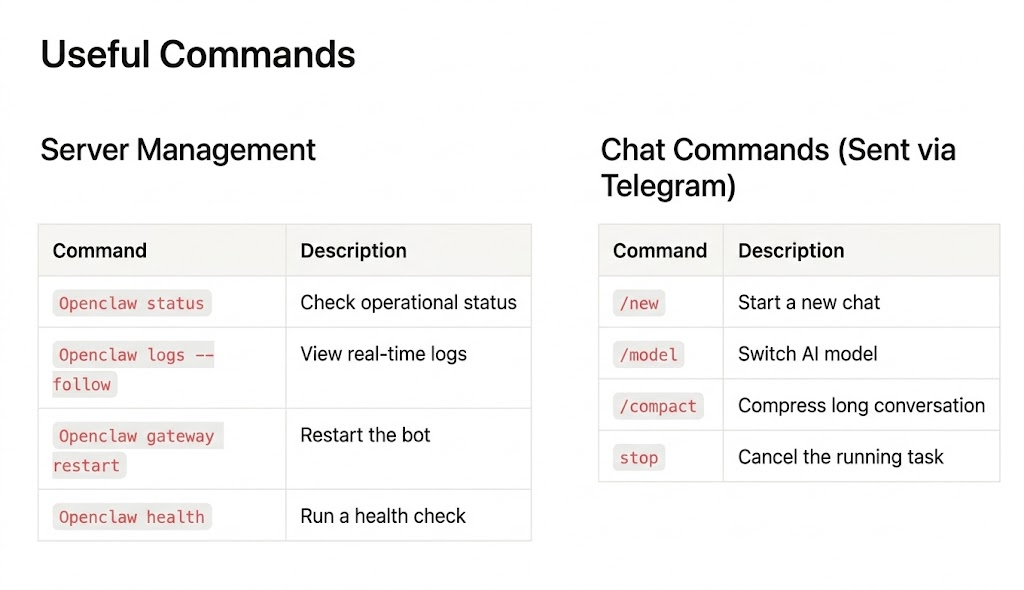
FAQ: Troubleshooting (Don’t Panic!)
- Q: I’m typing in the terminal but nothing’s showing up!
- A. That’s normal! The terminal is hiding secret text to keep you safe. Just hit Enter!
- Q: Will my bot shut down if I close my laptop?
- A. Nope! The server in Germany is always on 24/7. Your bot stays running!
- Q: How much does this cost?
- A. Apart from the €5.49/month server cost (CX33 plan), the per-message cost you pay to Anthropic is extremely small. So total costs are usually under $10/month!
How was that? Pretty amazing that you can build something this cool with just a few clicks, right? If you get stuck anywhere, drop a comment below. AI Agent News is rooting for you! You’ve got this! 💪
✅ After Installation
Once setup is complete, you can personalize your bot:
- Customize your bot’s personality via
~/Openclaw/SOUL.md - Enter personal info about yourself in
~/Openclaw/USER.md
Missed Part 1? Tree of Thoughts
The trick only 0.1% of users know (74% better results)
📥 Get Free Prompt Book (Part 1)


One Comment
Hi, this is a comment.
To get started with moderating, editing, and deleting comments, please visit the Comments screen in the dashboard.
Commenter avatars come from Gravatar.