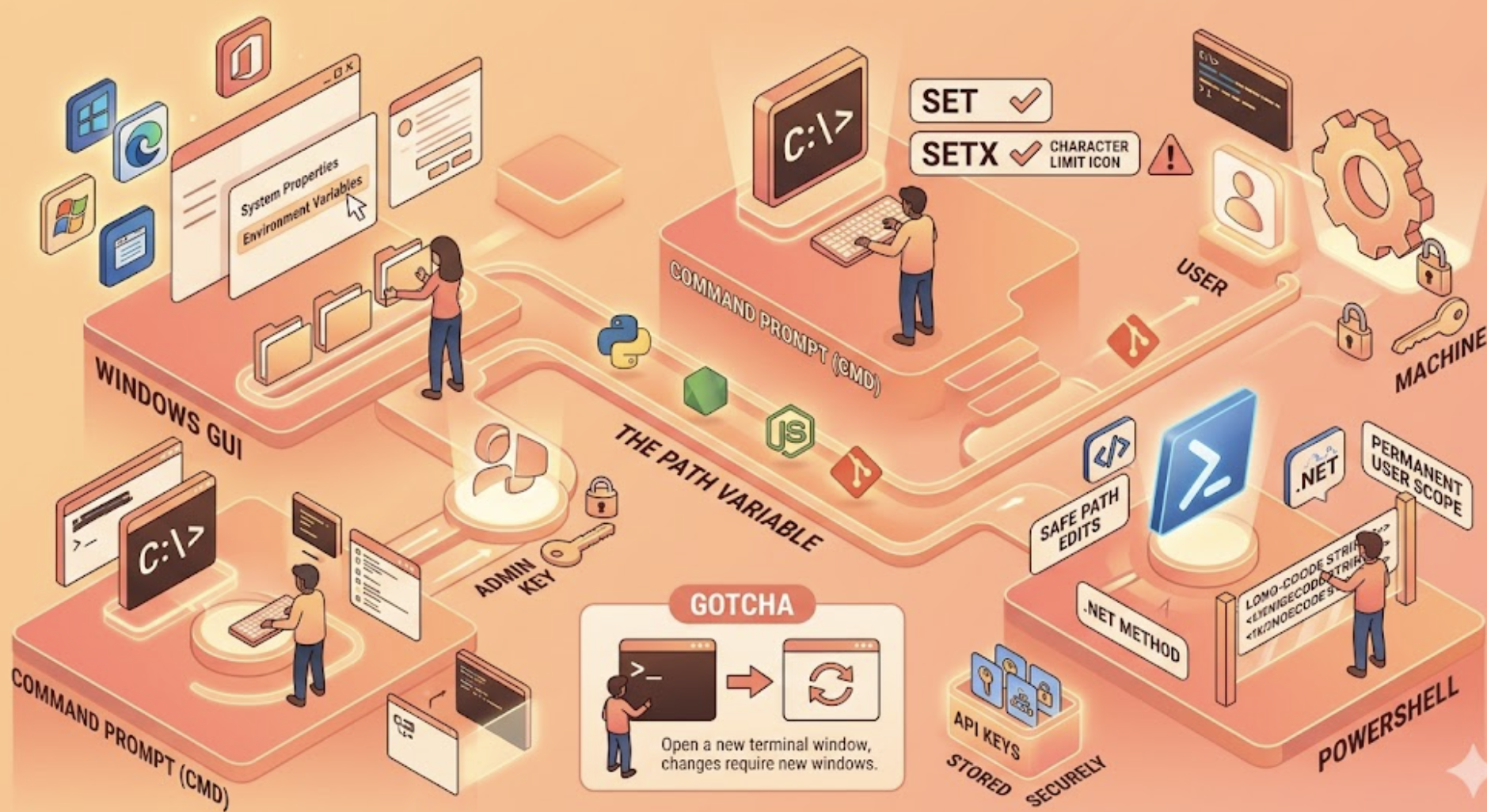
in Windows
GUI, CMD, and PowerShell — all three methods explained. Plus the gotchas that trip up every developer at least once.
You type python in your terminal. Windows says it can’t find it. You just installed Python five minutes ago.
This is the classic environment variable problem — and it happens to everyone. Understanding how Windows environment variables actually work (and how to set them properly) is one of those foundational skills that saves you hours of “why isn’t this working” debugging.
This guide covers all three methods: the GUI, the command line, and PowerShell. More importantly, it covers the gotchas that documentation usually skips — like why your changes don’t appear in the current terminal window, and why you should think twice before using setx on PATH.
Environment variables are key-value pairs that the operating system and applications read at runtime. Instead of hardcoding paths like C:\Python313\python.exe into every script, you define a variable once. Everything else reads from that variable.
The most important one is PATH — a semicolon-separated list of directories Windows searches every time you type a command without a full path.
Why “notepad” works anywhere in CMD — even though there’s no notepad.exe in your current folder:
C:\Windows\System32 is in your PATH
→ notepad.exe lives at C:\Windows\System32\notepad.exe
→ Windows finds it automatically via PATH lookup
This is why adding Python, Node, Git, or any CLI tool to PATH lets you run it from anywhere in your terminal.
This is the first thing to understand before touching anything. Windows has two separate scopes:
User Variables
Apply only to the current logged-in user. Stored in the registry at HKCU\Environment
Use this for: personal tools, Python, Node, dev tools you install for yourself
System Variables
Apply to all users and system services. Stored at HKLM\System\...\Environment
Use this for: system-wide tools. Requires admin rights to change.
Priority rule: If the same variable name exists in both User and System, User wins. Session variables (set in a terminal) override both.
Safest for PATH edits · No risk of truncation · Recommended for beginners
The GUI is the safest way to edit PATH because you can see all entries clearly and add/remove without accidentally wiping the whole thing. Use this method when you’re adding a new tool’s folder to PATH.
3 ways to open Environment Variables (fastest first):
Win + R → type: SystemPropertiesAdvanced → Enter
Opens System Properties directly. Click “Environment Variables” button at the bottom.
Win key → type: environment variables
Click “Edit the system environment variables” from search results
Control Panel → System → Advanced system settings → Environment Variables
The long way — same result
Adding a new PATH entry (GUI steps):
In the Environment Variables window → select Path from the User or System variables section → click Edit
Click New → paste in the folder path (e.g. C:\Program Files\nodejs)
Click OK all the way through. Open a new terminal window to see the change take effect.
Pro tip: Use “New” instead of “Browse” — it’s faster to paste the path directly. Copy the folder path from File Explorer’s address bar first, then paste it in.
Two commands with very different behaviors — know which one you’re using
CMD gives you two commands for environment variables. They look similar but work completely differently. Mixing them up causes real problems.
| Command | set | setx |
|---|---|---|
| Scope | Current session only | Permanent (registry) |
| Active in current window? | Yes — immediately | No — new window only |
| Survives reboot? | No | Yes |
| PATH character limit | None | 1024 chars — dangerous |
| Admin required? | No | For /M (system) only |
| Best for | Testing, temp scripts | Simple variables (NOT PATH) |
CMD — command reference:
View variables
set
REM Lists all current environment variables
echo %PATH%
REM Print a specific variable
set — session only (disappears when you close the window)
set MY_API_KEY=abc123
REM Only exists in this CMD window — gone when closed
setx — permanent (but NOT active in current window)
setx MY_VAR “hello world”
REM User variable — permanent, open new window to use it
setx MY_VAR “hello world” /M
REM System variable — /M flag, requires admin (Run as Administrator)
Checking variables from registry (more accurate)
reg query HKCU\Environment /v PATH
REM See the true user PATH value stored in registry
⚠️ Don’t use setx to edit PATH
setx has a hard 1024-character limit. If your PATH is already long (it usually is), using setx PATH "%PATH%;C:\NewTool" can silently truncate your entire PATH — breaking Python, Git, Node, and every other tool at once. Use the GUI or PowerShell for PATH edits.
Most powerful · Safe for PATH · Best for automation and scripts
PowerShell gives you the most control and is the safest method for scripting environment variable changes. The [Environment]::SetEnvironmentVariable() .NET method handles long strings properly — no 1024-char truncation risk.
PowerShell — command reference:
View variables
$env:PATH
# Print PATH for current session
Get-ChildItem Env:
# List all environment variables
Session-only (disappears when PowerShell closes)
$env:MY_API_KEY = “sk-abc123”
# Active immediately in this session only
Permanent — user scope (recommended)
[Environment]::SetEnvironmentVariable(“MY_VAR”, “myvalue”, “User”)
# Permanent for current user — open new window to use
Permanent — system scope (needs admin)
[Environment]::SetEnvironmentVariable(“MY_VAR”, “myvalue”, “Machine”)
# Run PowerShell as Administrator for this
Safely add to PATH without truncation risk
$current = [Environment]::GetEnvironmentVariable(“Path”, “User”)
$newPath = “$current;C:\MyTool\bin”
[Environment]::SetEnvironmentVariable(“Path”, $newPath, “User”)
Delete a variable
[Environment]::SetEnvironmentVariable(“MY_VAR”, $null, “User”)
# Set value to $null to delete the variable
The #1 gotcha that trips everyone up
When you set a permanent variable (via GUI, setx, or PowerShell’s .NET method), it does not apply to any terminal window that’s already open — including the one you just ran the command in.
You must open a new terminal window after making permanent changes. This is not a bug — it’s how Windows works. Environment variables are loaded when a process starts, not during its lifetime.
Bookmark this. You’ll come back to it.
View all variables
set
(CMD)
Get-ChildItem Env:
(PowerShell)
Temp variable (session)
set FOO=bar
(CMD)
$env:FOO = “bar”
(PowerShell)
Permanent variable
setx FOO “bar”
(CMD — not for PATH)
[Env]::SetEnvVar(“FOO”,”bar”,”User”)
(PowerShell — preferred)
Add to PATH safely
$c = [Env]::GetEnvVar(“Path”,”User”)
[Env]::SetEnvVar(“Path”,”$c;C:\Tool”,”User”)
(PowerShell — no truncation risk)
Read from registry
reg query HKCU\Environment
(User variables)
reg query “HKLM\SYSTEM\CurrentControlSet\Control\Session Manager\Environment”
(System variables)
If PATH breaks — emergency restore
Win+R → regedit → navigate to:
HKLM\SYSTEM\CurrentControlSet\Control\Session Manager\Environment
→ right-click PATH → restore/edit manually
[Env] is shorthand for [System.Environment] in PowerShell. Works the same way.
For AI developers — storing API keys as environment variables
Hardcoding API keys in your code is a security risk. The right approach is to store them as user environment variables and read them at runtime. Here’s how:
Step 1 — Set it once in PowerShell:
[Environment]::SetEnvironmentVariable(“OPENAI_API_KEY”, “sk-…”, “User”)
# Replace with your actual key. Open a new terminal after running this.
Step 2 — Read it in Python:
import os
api_key = os.environ.get(“OPENAI_API_KEY”)
Or in Node.js:
const apiKey = process.env.OPENAI_API_KEY;
Your key never appears in your code or gets accidentally committed to GitHub. This is the standard practice for all API credentials.
GUI
Adding or removing PATH entries. The visual list makes it impossible to accidentally delete everything. Best for beginners and for any PATH modification.
set
Quick testing in the current session. You want to try something without committing to a permanent change. Debugging why a variable isn’t working.
setx
Simple non-PATH variables that you want permanently set from CMD. Keep values short. Never use on PATH directly.
PowerShell
Automation, scripts, or anything involving PATH. The .NET method is the most reliable and handles long strings without truncation. Best for developers.
⚡
Most guides give you one method and call it done. Now you know all three, when to use each, and what to watch out for. Bookmark this and share it with whoever is still typing full paths in their scripts.
Share this guide
Someone on your team is googling this right now 🔍
Send them the cheatsheet before they accidentally nuke their PATH.
Every share reaches a developer who’s about to nuke their PATH with setx 🙏