Google Labs · April 21, 2026
Apache 2.0 · Fact-Checked ✓
Google Just Made Your Design System Readable by Every AI Agent
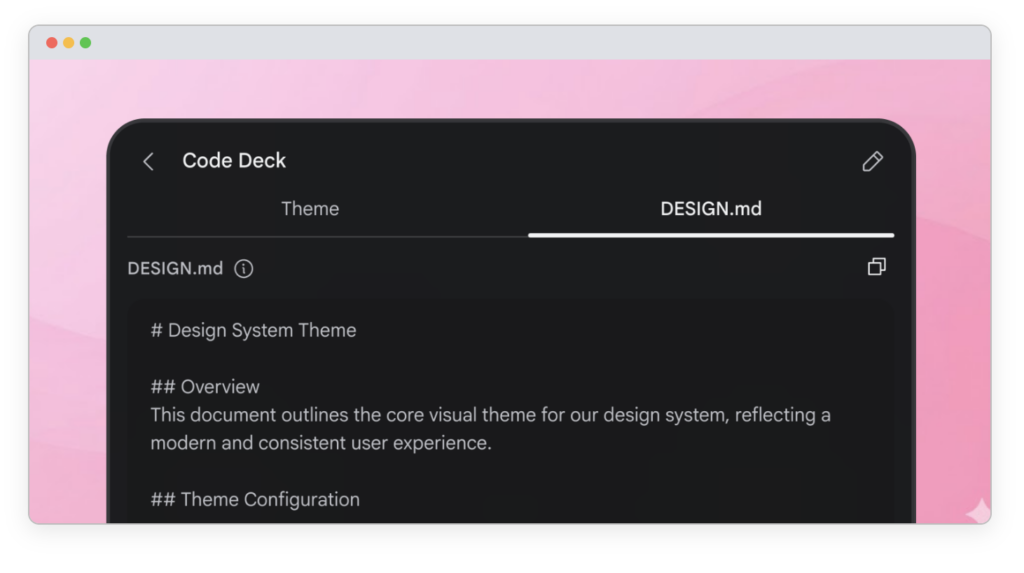
DESIGN.md is a new open-source file format from Google Labs. Drop it in your project root and Claude Code, Cursor, Copilot — any agent that writes UI code — will generate on-brand interfaces without you explaining your design system every single time.
If you’ve used Claude Code, Cursor, or GitHub Copilot to build UI, you’ve hit the same wall: the agent generates something functional, technically correct — and completely generic. You ask for “a dashboard with my brand colors” and get default Tailwind blue. You fix it manually. The next component comes out with a different visual language. You fix that too. It never ends.
The problem isn’t the AI. The problem is that the AI has no idea what your brand actually looks like — or why it looks that way. Every conversation starts from zero.
DESIGN.md is Google Labs’ answer to this. It’s a single file that lives in your project root — like README.md, but for your design system. Every agent that reads it stops guessing. Here’s exactly what it is, how it works, and how to use it today.
What DESIGN.md Actually Is
DESIGN.md is a format specification for describing a visual identity to coding agents. It combines machine-readable design tokens — YAML front matter — with human-readable design rationale in markdown prose. Tokens give agents exact values. Prose tells them why those values exist and how to apply them.
The analogy is intentional and precise: README.md explains your codebase to human contributors. DESIGN.md explains your design system to AI agents. Same location, same format, different audience.
DESIGN.md — Anatomy of a Real File (from Google’s spec)
—
name: Heritage
colors:
primary: “#1A1C1E”
secondary: “#6C7278”
tertiary: “#B8422E”
neutral: “#F7F5F2”
typography:
h1:
fontFamily: Public Sans
fontSize: 3rem
body-md:
fontFamily: Public Sans
fontSize: 1rem
rounded:
sm: 4px md: 8px
spacing:
sm: 8px md: 16px
—
## Overview
Architectural Minimalism meets Journalistic Gravitas.
The UI evokes a premium matte finish — a high-end broadsheet
or contemporary gallery.
## Colors
The palette is rooted in high-contrast neutrals and a single accent.
– Primary (#1A1C1E): Deep ink for headlines and core text.
– Tertiary (#B8422E): “Boston Clay” — the sole interaction driver.
The YAML block (between the — fences) is machine-readable tokens. The markdown prose below explains the reasoning — what the color is called, why it exists, when to use it. Both halves are required for the full picture.
🔑 The Key Insight — Why This Is Different From a Style Guide
A Figma component library tells a human designer what things look like. DESIGN.md tells an AI agent what things mean. The color “#B8422E” could be anything. “Boston Clay — the sole interaction driver” tells the agent it should only appear on interactive elements.
The key is its unique ability to combine human-readable reasoning — the “why” of design choices — with precise code values like hex codes, all in a single file. This teaches AI agents to perceive design tokens as semantic roles rather than mere variables.

What the Full Spec Covers
Every DESIGN.md follows the same structure. Sections can be omitted if not relevant, but those present should appear in the sequence below. Here’s what the full spec includes:
## Overview
Brand & Style
A holistic description of the product’s look and feel — brand personality, target audience, and emotional response. Should the UI feel playful or professional, dense or spacious? This is the agent’s fallback when no specific rule covers a decision.
## Colors
Color Palettes
Primary palette required. Additional palettes optional. Each color entry includes value + semantic description — what it’s for, not just what it is.
## Typography
Type System
Font families, sizes, and weights for each text role (h1, h2, body, caption, label-caps). Cross-references to token values using {path.to.token} syntax.
## Components
Component Tokens
A map of component identifiers to design token groups — button-primary, button-primary-hover, card, input, etc. Variants for different states (hover, active, pressed) are defined as separate but related keys.
## Agent Prompt
Agent-Specific Instructions
Optional section for tool-specific guidance — Gemini CLI notes, Claude Code constraints, Cursor preferences. Lets you write agent instructions alongside the design system instead of in a separate prompt file.
The CLI — 4 Commands You’ll Actually Use
Google is shipping a CLI tool with commands for validating, comparing, and exporting design files to formats like Tailwind or W3C DTCG. Everything runs via npx — no global install needed.
LINT — Validate your file
npx @google/design.md lint DESIGN.md
npx @google/design.md lint –format json DESIGN.md
Validates structural correctness, checks WCAG contrast ratios automatically, and surfaces broken token references. Returns structured JSON that agents can act on directly. Exit code 1 if errors found.
DIFF — Compare two versions
npx @google/design.md diff DESIGN.md DESIGN.next.md
Reports token-level changes between two DESIGN.md files. Shows added, removed, and modified tokens. Exit code 1 if regressions detected — meaning the “after” file has more errors or warnings than the “before.” Use this in CI to catch unintended design system drift.
EXPORT — Convert to other formats
npx @google/design.md export –format tailwind DESIGN.md > tailwind.theme.json
npx @google/design.md export –format dtcg DESIGN.md > tokens.json
Converts your DESIGN.md tokens directly to Tailwind config or W3C DTCG tokens.json. One source of truth → multiple export targets. If you use Figma Variables or Storybook, DTCG format is the bridge.
SPEC — Inject spec context into agent prompts
npx @google/design.md spec
npx @google/design.md spec –rules-only –format json
Outputs the full DESIGN.md format specification — useful for injecting spec context into agent prompts when you want the agent to understand the file format itself, not just the contents.
The lint output includes WCAG contrast ratio results automatically. Example: “textColor (#ffffff) on backgroundColor (#1A1C1E) has contrast ratio 15.42:1 — passes WCAG AA.” Free accessibility audit built into every validation run.
3 Ways to Get Your DESIGN.md Right Now
1
Generate it in Google Stitch (Easiest)
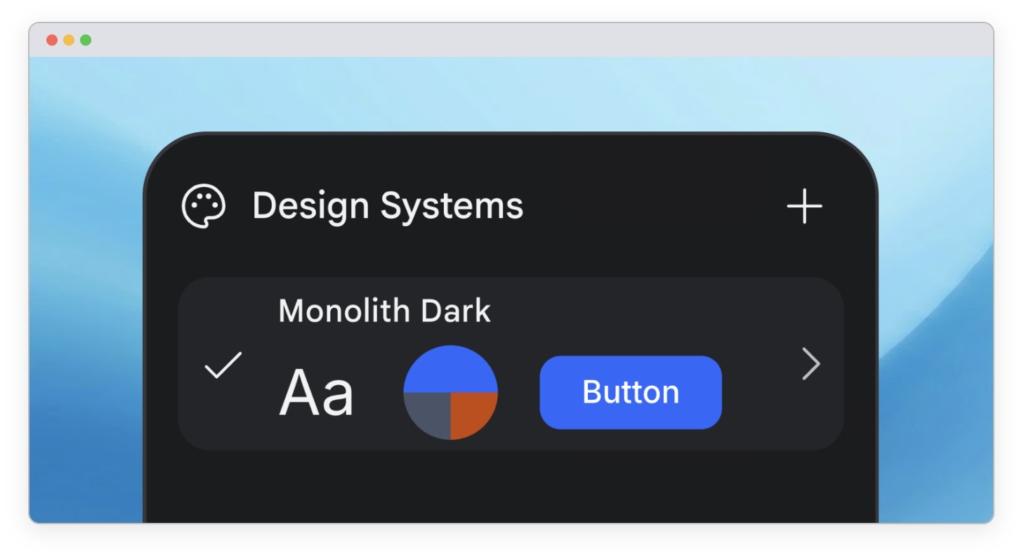
Go to stitch.withgoogle.com, create a project or import your existing design, and Stitch will generate a DESIGN.md from your visual system automatically. Free to use.
→ stitch.withgoogle.com → Your project → Export → DESIGN.md
2
Grab a Ready-Made Template (Fastest)
The awesome-design-md repo on GitHub is a curated collection of DESIGN.md files extracted from real websites — Anthropic, Cohere, and others. Drop one in as a starting point and edit the values to match your brand.
→ github.com/VoltAgent/awesome-design-md
How to Use It with Claude Code, Cursor, and Copilot
The mechanics are simple. The payoff is in how you reference it from your workflow.
Claude Code
# Add this to your CLAUDE.md
Always read DESIGN.md at project root before generating any UI.
Use the design tokens and rationale to make all styling decisions.
Run `npx @google/design.md lint DESIGN.md` and fix errors before shipping.
Or just drop DESIGN.md in the root and reference it in your opening prompt: “Check DESIGN.md before writing any CSS or component styles.”
Cursor
# Add to .cursorrules
Before writing UI code, read @DESIGN.md.
Use the token values and semantic descriptions for all design decisions.
Do not use arbitrary color values — reference design tokens only.
GitHub Copilot / any agent
# Inject spec into prompt for first-time setup
npx @google/design.md spec > design-spec-context.txt
# Then include in your prompt:
“Use the attached DESIGN.md to style all components.”
⚡ Bonus: Stitch MCP + Agent Skills
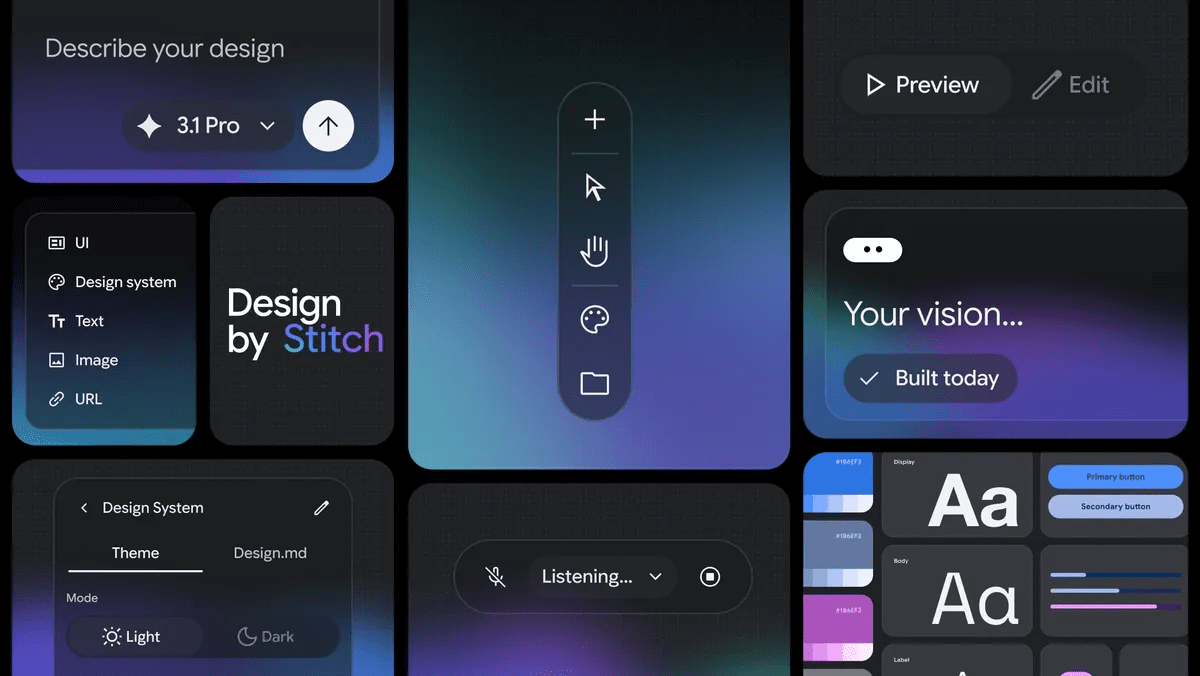
Google also shipped a library of Agent Skills for the Stitch MCP server, compatible with Claude Code, Cursor, Gemini CLI, and Antigravity. The design-md skill automatically analyzes a Stitch project and generates a complete DESIGN.md from it.
npx skills add google-labs-code/stitch-skills –skill design-md –global

What It Doesn’t Do Yet
⚠️ Honest Limitations (Alpha, April 2026)
→ Alpha spec — The DESIGN.md format is at version alpha. The spec, token schema, and CLI are under active development. Expect changes to the format as it matures.
→ Not a Figma replacement. Figma remains unbeatable for real-time collaboration, granular permissions, contextual comments, and high-precision refinement. DESIGN.md covers the specification phase and handoff to AI agents — the realistic workflow is hybrid, both tools coexist.
→ Adoption is still early. For it to become a de facto standard, Figma, v0, Cursor, and other tools need to jump on board. Right now it works well with Stitch natively; agent support in other tools is via manual prompt referencing.
→ API outputs above 2K still in beta when generating via Stitch. Results can be more variable above that threshold.
🔖 SAVE THIS — Quick Reference
What it is: An open-source file format (Apache 2.0) that describes your design system to AI coding agents. YAML tokens + markdown rationale in one file.
What it solves: AI agents generating generic UIs that don’t match your brand. Drop DESIGN.md in your project root — agents stop guessing, start building on-brand.
Where to get it: Generate free in Stitch, grab a template from awesome-design-md, or write it by hand following the spec.
CLI commands: lint (validate + WCAG check), diff (version comparison), export (Tailwind / DTCG), spec (inject into agent prompts).
Already using DESIGN.md in your project? Drop your setup in the comments — especially how you’re referencing it in Claude Code or Cursor.
 What the Full Spec Covers
 What It Doesn’t Do Yet


