📋 Fact-Check Note
All facts in this post are verified against Google’s official release notes, 9to5Google, TechCrunch, and Dataconomy coverage published April 20–21, 2026. The original source material had several inaccuracies — see the correction box at the end.
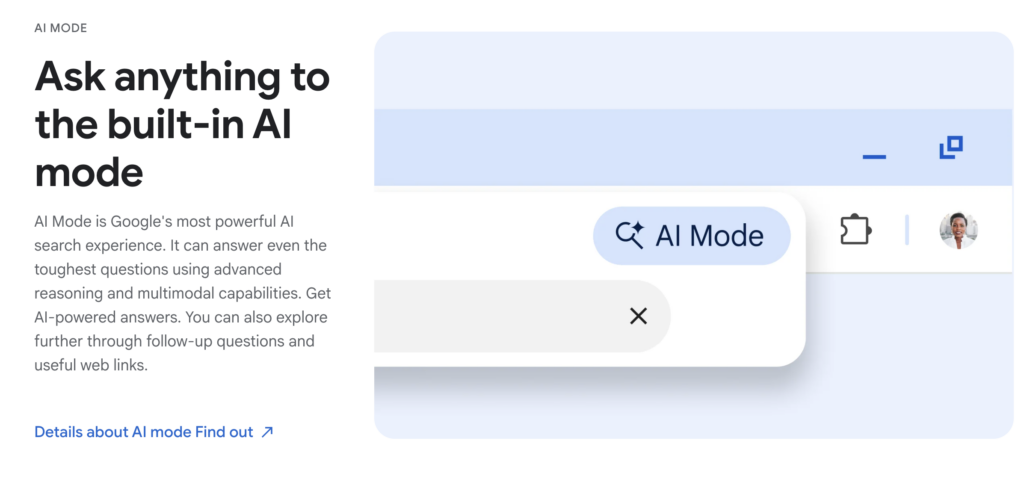 There’s a version of Chrome you’re probably still using — the one where you open a new tab when you want to search, copy and paste between windows when you want to compare, and open a separate app when you want to send an email. Google just decided that version is obsolete.
Gemini in Chrome launched in the US in January 2026. It hit Canada, India, and New Zealand in March. As of April 20, it’s rolling out across Asia-Pacific — Australia, Indonesia, Japan, the Philippines, Singapore, South Korea, and Vietnam. The feature brings a persistent AI side panel directly into the browser — no tab switching, no new window, no copy-paste workflow.
Here’s a complete breakdown of what it actually does, what’s available where, and what the honest limitations are.

⚡ How to Access It Right Now
Chrome Settings → AI innovations → Gemini in Chrome to customize behavior.The side panel is the core of Gemini in Chrome. It opens next to whatever you’re reading — not in a new tab, not in a pop-up that covers your content. You can ask it to summarize the page you’re on, explain a concept in simpler terms, or pull out specific details, all without losing your place.
Built on Gemini 3, the update brings a side panel experience that lets you multitask, access deeper Google app integrations, and edit images — all without leaving your current tab.
This is the feature that makes the most immediate practical difference. Gemini in Chrome can read across your open tabs simultaneously and synthesize the information — comparing products, pulling conflicting details, or building a unified summary from multiple sources.
Open five supplement brand pages. Ask Gemini to compare protein content, price per serving, and shipping. Get a table instead of 20 minutes of tab switching.
Pull up several sources for a topic. Ask Gemini to identify where they agree, where they conflict, and what the gaps are — across all of them at once.
Open several job postings and ask Gemini to compare requirements, highlight where you qualify, and identify the gaps you’d need to address.
Hotel pages, review sites, local guides — all open at once. Ask for a combined summary by price, location, and what past guests consistently praised or flagged.
Gemini in Chrome reads the context of up to 10 open browser tabs. That’s the current cap — relevant for power users who typically have 30+ tabs open.
From the side panel, you can schedule meetings with Calendar, check location details with Maps, draft and send emails with Gmail, and ask questions about YouTube videos — all without navigating away from whatever page you’re on.
| Google App | What You Can Do From Chrome | Confirmation Required? |
|---|---|---|
| Gmail | Draft and send emails based on what you’re reading | Yes ✓ |
| Google Calendar | Add events and meetings directly from any page | Yes ✓ |
| Google Maps | Check directions, hours, and details for any location mentioned on a page | Read-only |
| YouTube | Summarize video content, ask questions while watching | Read-only |
⚡ The Security Layer — How Google Handles This
For any action that touches your personal data — sending an email, adding a calendar event — Gemini in Chrome requires explicit confirmation before executing. Google also states they’ve trained the model to identify prompt injection attacks, where a malicious website tries to hijack the AI into taking actions you didn’t authorize. The model won’t act; you confirm first.
Nano Banana 2 capabilities allow you to transform images on the web using a text prompt in the Gemini in Chrome side panel. You see an image, you describe what you want changed, it happens — right there in the browser. No Photoshop, no Canva, no downloading and re-uploading.
Note: Nano Banana 2 images include Google’s invisible SynthID watermark (C2PA standard) — standard for AI-generated content. Fine for personal use; check usage rights for commercial republication.
This is the most ambitious feature — and the most limited in availability right now. Auto Browse lets Gemini actually operate your browser on your behalf: fill out forms, complete purchases, make reservations, navigate multi-step flows.
Current Status (April 2026)
With Personal Intelligence, Gemini in Chrome can remember context from past conversations, so you get uniquely tailored answers to whatever you’re looking for across the web. This connects to your Gmail and Google Photos to pull in personal context — your preferences, past decisions, things you’ve mentioned before.
Privacy Note
Personal Intelligence connects to your Gmail and Photos. Google says you remain in control: you can pause access, control what Gemini can read, and delete your history at any time from Settings → AI innovations. This feature is opt-in — it doesn’t activate without your configuration. Not available to Google Workspace business and education accounts.
Not everything is available everywhere. Here’s the exact state as of April 21, 2026.
| Feature | US | APAC (incl. South Korea) | Plan Required |
|---|---|---|---|
| Side panel + page summary | ✓ Live | ✓ Rolling out | Free Google account |
| Multi-tab comparison | ✓ Live | ✓ Rolling out | Free Google account |
| Gmail / Calendar / Maps | ✓ Live | ✓ Rolling out | Free Google account |
| Image editing (Nano Banana 2) | ✓ Live | ✓ Rolling out | Free Google account |
| YouTube Q&A | ✓ Live | ✓ Rolling out | Free Google account |
| iOS support | ✓ Live | ✓ Live (not Japan) | Free Google account |
| Auto Browse (agentic) | Preview only | ✗ Not available | AI Pro ($19.99/mo) or Ultra ($249.99/mo) — US only |
The most significant shift here isn’t any individual feature — it’s the elimination of context switching. The current browser workflow is basically: find something → copy it → open another app → paste it → do something with it → come back. Gemini in Chrome is an attempt to make that entire loop happen in one place.
The multi-tab comparison is the feature most likely to change daily habits. Anyone who has spent 45 minutes comparing hotel options, laptops, or job postings across a dozen tabs knows exactly what problem this solves.
⚠️ Limitations Worth Knowing
📋 Fact-Check: What the Original Reports Got Wrong
Already using Gemini in Chrome? Drop your first impressions in the comments — especially curious how the multi-tab comparison holds up in practice.


