HANDS-ON GUIDE
Claude Cowork: The Complete Guide to Your New AI Desktop Agent (2026)
Forget chatbots. Cowork reads your files, builds your spreadsheets, and schedules your reports — all without writing a single line of code.
|
15 min read
|
Covers: Projects, Dispatch, Scheduled Tasks, Computer Use
TL;DR — What Is Claude Cowork?
Claude Cowork brings the power of Claude Code to a visual desktop interface — no terminal required. Give it access to a folder, describe what you want done, and walk away. It plans, executes, and delivers real files: Excel spreadsheets with formulas, PowerPoint decks, formatted reports, and more. Think of it as delegating work to a capable colleague who happens to live inside your laptop.
What’s in This Guide
1. Chat vs. Cowork vs. Code — Which Mode Do You Need?
2. Requirements and Setup (5 Minutes)
3. Your First Task: A Step-by-Step Walkthrough
4. Real Use Cases with Copy-Paste Prompts
5. The Secret Sauce: Instructions, Plugins, and Projects
6. Scheduled Tasks — Put It on Autopilot
7. Dispatch — Control Your Desktop from Your Phone
8. Safety and Limitations You Should Know
9. Pricing: Which Plan Makes Sense?
10. Power User Tips
 1. Chat vs. Cowork vs. Code — Which Mode Do You Need?
 1. Chat vs. Cowork vs. Code — Which Mode Do You Need?
When you open Claude Desktop, you’ll see three tabs at the top: Chat, Cowork, and Code. They look similar, but they work very differently under the hood.
| Chat | Cowork | Code | |
|---|---|---|---|
| Best for | Quick questions, brainstorming | Knowledge work, file tasks, reports | Software development |
| File access | Manual upload only | Direct local folder access | Full repo access |
| Execution | One response at a time | Multi-step, autonomous | Interactive, real-time |
| Output | Text in the chat window | Real files saved to your computer | Code changes in your project |
| Scheduling | No | Yes — recurring tasks | No |
| Target user | Everyone | Non-technical professionals | Developers |
The key distinction: Chat responds. Cowork executes. When you ask Chat to “make me an expense report,” it gives you advice on how to do it. When you tell Cowork the same thing, it reads your receipt images, creates the actual .xlsx file, and saves it to your folder — with working formulas and everything.
 2. Requirements and Setup (5 Minutes)
 2. Requirements and Setup (5 Minutes)
Before you start, here’s what you need:
✓ Claude Desktop app — available for macOS and Windows (x64). Download it from claude.com/download.
✓ A paid Claude plan — Pro ($20/mo), Max ($100–200/mo), Team ($30/user/mo), or Enterprise. Free plan doesn’t include Cowork.
✓ Active internet connection — required throughout the session.
✓ Keep the app open — Cowork stops if you close the app or your computer sleeps.
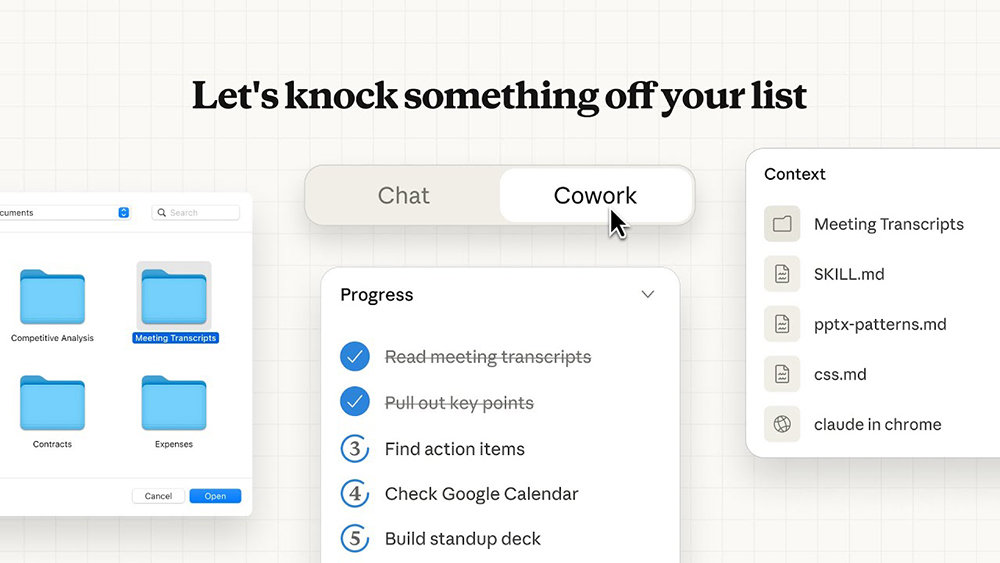
Setup steps: Open Claude Desktop → click the “Cowork” tab at the top (next to Chat) → you’re in. That’s genuinely it. No terminal, no config files, no package installs.
3. Your First Task: A Step-by-Step Walkthrough
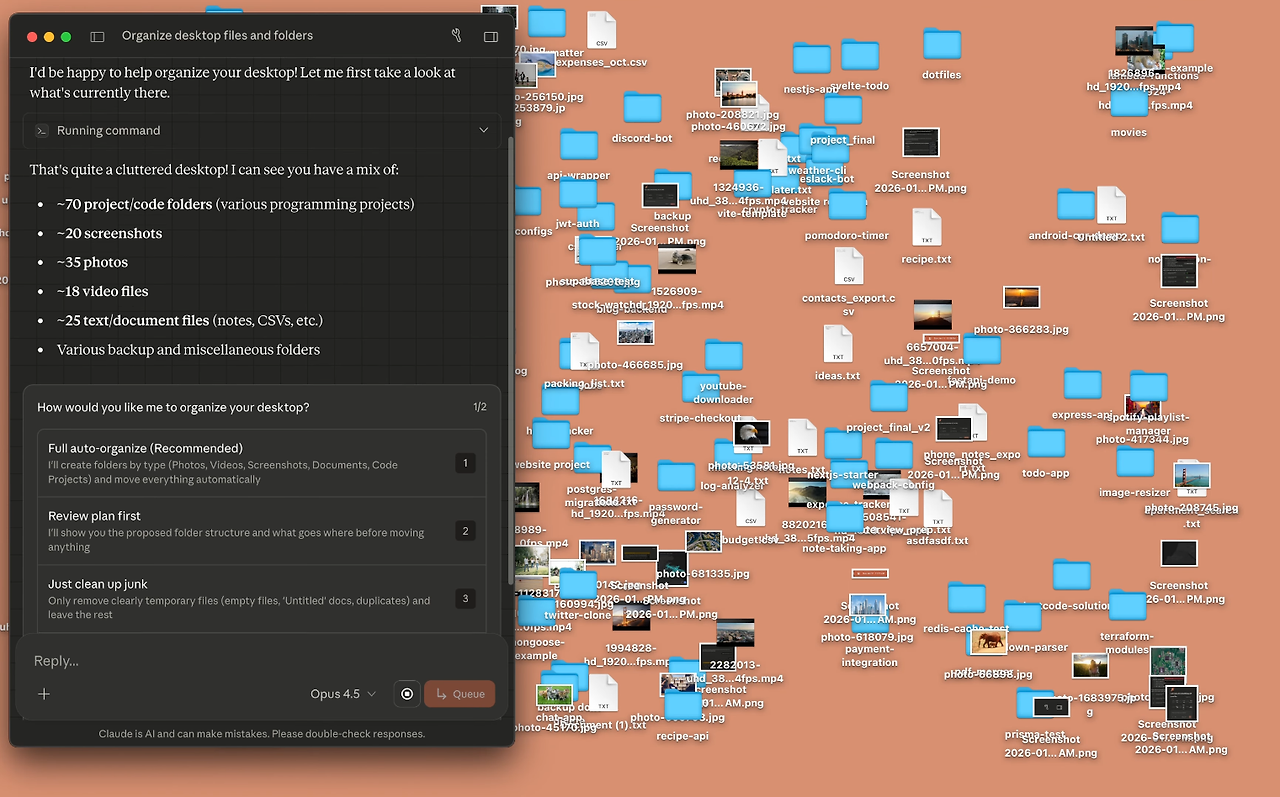
Let’s run through your first real Cowork task from scratch. We’ll organize a messy Downloads folder — something almost everyone can relate to.
Step 1 Pick a folder. At the bottom of the Cowork interface, you’ll see a “Work in a folder” option. Click it and select your Downloads folder (or any folder you want to organize).
Step 2 Grant permissions. Claude will ask if it can read, modify, and create files in that location. Approve it.
Step 3 Write your prompt. Be specific about what you want. Here’s a good starter:
Spreadsheets, Presentations, PDFs, Code, and Other. Move each file into
the right subfolder based on its type. Rename generic filenames
(like “Screenshot 2026-03-15”) to something descriptive based on the
file’s content. Flag any duplicates. Give me a summary when you’re done.
Step 4 Click “Let’s go” and watch it work. Claude will show you its plan, break it into subtasks, and start executing. You can watch in real time or walk away.
Step 5 Review the output. When it’s done, you’ll get a clean summary and your files will already be organized.
Pro tip
Don’t start with your most important folder. Pick something low-risk like Downloads first so you can see how Cowork operates before trusting it with critical files.
 4. Real Use Cases with Copy-Paste Prompts
 4. Real Use Cases with Copy-Paste Prompts
Here are practical workflows you can try right now. Each prompt is ready to copy — just update the details in brackets.
USE CASE 1
Expense Report from Receipt Photos
Drop a handful of receipt screenshots into a folder, then run this:
as an Excel file (.xlsx) with columns for: Date, Vendor, Category
(meals, transport, supplies, etc.), Amount, and Payment Method.
Add a total row at the bottom with SUM formulas. Sort by date.
Output: A production-ready .xlsx file with working formulas — not just a table in the chat.
USE CASE 2
Financial Data Analysis with Charts
Point Cowork at a spreadsheet with raw financial data:
includes: executive summary, spending breakdown by category, month-over-
month trend analysis, and department comparison. Include charts for each
section. Save as a new Excel file called “Q1-Cost-Analysis.xlsx”.
Output: A formatted report with data visualizations, generated directly from your raw numbers.
USE CASE 3
Deep Research Synthesis
Need to research a topic thoroughly and get a clean deliverable?
developments, different perspectives, and implications for [MY CONTEXT].
Structure as a 3-5 page report with an executive summary. Include
sources. Save as a Word doc called “[topic]-research-brief.docx”.
Output: A polished .docx report you could send directly to a colleague or manager.
USE CASE 4
Weekly Team Status Presentation
Got a folder of project updates scattered across docs? Let Cowork compile them:
presentation summarizing this week’s project status. Include:
highlights, blockers, key metrics, and next steps for each workstream.
Use a clean, professional design. Save as “weekly-status.pptx”.
Output: Editable .pptx slides — not static images, actual PowerPoint you can tweak.
5. The Secret Sauce: Instructions, Plugins, and Projects
Basic Cowork is already impressive. But three features turn it from “cool tool” into “digital teammate that knows how you work.”
🎯 Instructions — Teach Claude How You Work
Instead of repeating the same context every time (“I’m a marketing manager, write in a professional tone, use metric units…”), you can save permanent instructions that apply to every session.
Global Instructions apply to everything in Cowork. Set them once and forget them.
📍 How to set: Settings → Cowork → Global Instructions
Example: “I’m a product manager at a B2B SaaS company. All reports should use a professional tone, US date format (MM/DD/YYYY), and USD for currency. Always ask before deleting any files.”
Folder Instructions activate only when Claude works in a specific folder. Perfect for project-specific rules.
📍 How to set: Type instructions in the Cowork prompt area, or create a claude.md file in the folder
Example: “This folder contains client invoices. All output files should follow the naming convention: YYYY-MM_ClientName_Invoice. Never modify the original files — always create new ones.”
🔌 Plugins — Give Claude Domain Expertise
Plugins are pre-built packages that inject specific professional skills into Claude. Think of them as hiring a specialist on demand.
Anthropic released 11 open-source plugins covering areas like sales, legal, finance, marketing, data analysis, customer support, and HR. A growing marketplace now includes third-party plugins too — you can browse them at claude.com/plugins.
You can also create custom plugins tailored to your company’s terminology, workflows, and tools. This is where Cowork starts to feel less like a generic AI assistant and more like a team member who actually understands your business.
Real-world plugin example
One user built a custom Google Ads plugin with 21 skills covering account audits, search term analysis, CPA diagnosis, and campaign reporting — all running inside Cowork without ever opening the Google Ads dashboard.
📁 Projects — Persistent Workspaces That Remember
This feature, launched in March 2026, was the missing piece. Before Projects, every Cowork session started from scratch — Claude forgot everything from your previous tasks. Projects fix that.
A Cowork Project is a dedicated workspace that bundles your files, instructions, scheduled tasks, and memory into one persistent container. Claude remembers context from previous tasks within the same project, so you stop re-explaining yourself every session.
A Project gives you:
→ Project-specific instructions — tone, format, rules that apply only here
→ Local folder access — a dedicated workspace on your machine
→ Memory across sessions — Claude builds on what it learned last time
→ Scheduled tasks — recurring automation scoped to this project
→ Context links — attach URLs or chat projects as reference material
How to set one up: Open Cowork → Projects → click “+” → choose to start from scratch, import from an existing Claude project, or use an existing folder. Name it, add your instructions, and you’re ready.
6. Scheduled Tasks — Put It on Autopilot
This is where Cowork crosses the line from “useful tool” to “employee you don’t have to manage.” You write a prompt once, set a cadence, and Claude runs it automatically — every morning, every Friday, every hour, whatever you need.
Two ways to create a scheduled task:
1. From any Cowork session: Type /schedule in the chat input. Fill in the task name, prompt, and frequency.
2. From the sidebar: Click “Scheduled” in the left panel → “New task” → configure everything from there.
Available cadences: hourly, daily, weekly, on weekdays, or manual (on-demand only).
SCHEDULED TASK IDEAS WORTH TRYING
Morning Briefing (Daily, 8 AM): “Summarize today’s calendar, list my top-priority emails, and check [competitor website] for any new announcements. Save as morning-brief.md.”
Download Folder Cleanup (Weekly, Friday): “Organize my Downloads folder by type. Delete anything older than 30 days. Flag duplicates. Give me a summary of what changed.”
Weekly Expense Report (Weekly, Monday): “Process all receipt images from /receipts, create a categorized spreadsheet, calculate totals.”
Competitive Intel (Weekly, Wednesday): “Research the latest news about [Competitor A], [Competitor B], and [Competitor C]. Compile a one-page competitive brief highlighting anything I should know about.”
Important caveat
Scheduled tasks only run when your computer is awake and Claude Desktop is open. If your machine sleeps through the scheduled time, the task gets skipped and runs the next time you open the app. Double-check your time zone in Claude Desktop settings — this has tripped up a lot of early users.
One clever detail: after the first run, Claude actually rewrites the task’s instructions based on what it learned — which connectors worked, where it found data, what format delivered the best results. So your second run is usually better than the first.
7. Dispatch — Control Your Desktop from Your Phone
Dispatch, launched in March 2026, connects your Claude mobile app to your desktop Cowork session. You send a task from your phone, Claude executes it on your computer, and you get the result back on your phone when it’s done.
Setup: Open Cowork → click “Dispatch” in the left sidebar → scan the QR code with your Claude mobile app. That pairs them into one persistent conversation.
This is genuinely powerful for people who are always on the move. You could be at a coffee shop, text Claude “Pull together the monthly sales numbers from the spreadsheets in my Reports folder and create a deck,” and come back to your laptop with the finished presentation waiting for you.
Keep in mind
Your desktop must be awake and the app must be open for Dispatch to work. You’re essentially using your phone as a remote control — Claude still does all the heavy lifting on your computer.
8. Safety and Limitations You Should Know
Cowork is powerful, which means you should be thoughtful about what you give it access to. A few things to keep in mind:
🔒 Data stays local. Cowork runs on your machine. Conversation history is stored locally, not on Anthropic’s servers. Your files aren’t sent off for training.
🛡️ Sandboxed execution. Code runs inside an isolated virtual machine. But Computer Use (screen control) operates outside that sandbox — it interacts with your actual desktop.
⚠️ Don’t point it at sensitive folders. Avoid granting access to folders with API keys, passwords, medical records, financial credentials, or anything you wouldn’t paste into a chat window.
👀 Review before trusting. Claude asks for confirmation before significant actions, but you should still review outputs — especially for scheduled tasks and early experiments.
🚧 It’s a research preview. No audit logs, no compliance API capture, no guaranteed uptime. Not suitable for HIPAA or SOC 2 workflows yet.
9. Pricing: Which Plan Makes Sense?
| Plan | Price | Cowork Access | Best For |
|---|---|---|---|
| Pro | $20/mo | Full features, lower usage limits | Trying it out, light daily use |
| Max 5x | $100/mo | Full features, higher limits | Daily power user |
| Max 20x | $200/mo | Full features, highest limits | Heavy daily automation |
| Team | $30/user/mo | Full features, admin controls | Small teams |
My honest take: Start with Pro at $20/month. You get access to every feature — including scheduled tasks, plugins, projects, and Dispatch. The only difference is how many tasks you can run before hitting usage limits. If you find yourself running out of juice regularly, that’s your signal to upgrade to Max. Cowork consumes more resources than regular chat, so keep that in mind.
10. Power User Tips
After working with Cowork extensively, here are the tricks that make the biggest difference:
1. Create a dedicated work folder. Don’t give Claude access to your entire Documents directory or Desktop. Make a folder called something like Claude-Workspace and keep everything organized there. That’s your security boundary.
2. Use context files. Drop a file called about-me.md or brand-voice.md into your project folder. Claude will read it automatically and use it as reference. This single trick dramatically improves output quality and consistency.
3. Be specific, not vague. “Organize my files” gets generic results. “Sort all PDFs by client name, move invoices into /invoices, flag anything older than 90 days for archival” gets exactly what you want.
4. Run manually before scheduling. Always test a task interactively at least once before turning it into a scheduled task. Make sure Claude finds the right files, uses the right format, and handles edge cases. Then schedule the proven prompt.
5. Add “proceed without asking” to Global Instructions — but only for low-risk actions like file moves and renames. Keep confirmation turned on for deletions. This speeds up execution significantly.
6. Batch related tasks together. Instead of running five separate small tasks, combine them into one prompt. This uses fewer tokens and gets results faster — especially important if you’re on a Pro plan watching your usage limits.
7. Use connectors for real data. Cowork can connect to Gmail, Slack, Google Drive, Google Calendar, GitHub, Notion, and a growing list of other tools via MCP. A scheduled task with connectors is the difference between “search the web for competitor news” and “pull my team’s Slack threads, check the Google Drive reports, and build me a status update.”
8. Two or three well-tuned tasks beat ten sloppy ones. Don’t over-automate on day one. Pick your most painful weekly task, nail the prompt, schedule it, and move on to the next one only when it’s working reliably.
The Bottom Line
Claude Cowork represents a real shift in how AI tools work. Instead of chatting back and forth and copy-pasting results into the right apps, you describe the outcome you want and let Claude handle the execution. It reads your files, builds your spreadsheets, creates your presentations, and — with scheduled tasks — does it all again next week without being asked.
It’s not magic. Claude will sometimes misinterpret instructions, miss edge cases, or need course correction. But for the right workflows — file organization, data analysis, document synthesis, report generation, recurring admin work — it genuinely saves hours every week. The best way to understand it is to download the desktop app, pick one annoying task from your week, and hand it off.
Ready to Try It?
Download Claude Desktop → claude.com/download
Browse Plugins → claude.com/plugins
Official Help Docs → support.claude.com
⭐ Claude Just Killed the $600 AI Mac Mini Trend (For $20/mo)