Every major AI tool has a “power” setting that most users ignore. For GPT Image 2, that setting is Thinking Mode — and it’s the difference between a model that generates images and a model that reasons about what your image should be before drawing a single pixel.
But here’s what the marketing doesn’t tell you: Thinking Mode isn’t always better. For the right tasks, it’s categorically superior. For others, you’re just waiting longer for the same result — and paying more per API call.
This guide covers everything: what Thinking Mode actually does technically, how to activate it in every context, the exact decision framework for when to use it, and the six capabilities it unlocks that Instant Mode simply can’t do.
The short version is that Thinking Mode adds a reasoning step before generation. But that description undersells what’s actually happening. Here’s the full picture:
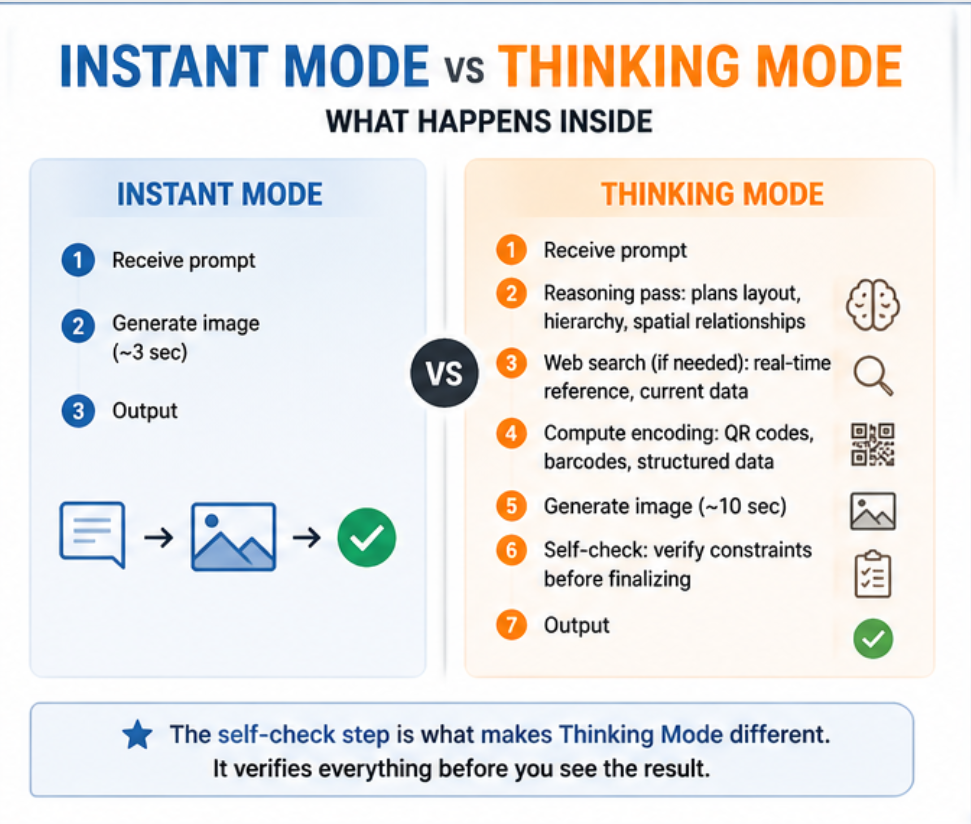
The self-check step is what makes Thinking Mode genuinely different. The model can verify that a QR code actually encodes the right URL, that an infographic has exactly the number of sections you specified, or that a multi-image set maintains consistent character details — before showing you the output. Instant Mode never does this.
🧠 What’s Running Under the Hood
GPT Image 2 is powered by the GPT-5.4 backbone, and it uses the same reasoning pipeline as ChatGPT’s text capabilities — meaning it “thinks” about what you want before generating, can search the web for reference if needed, and can self-check its outputs for accuracy.
This is why Thinking Mode produces meaningfully different outputs — not just “better quality” same images, but structurally different results for complex prompts. The reasoning layer can hold multi-step constraints in context and verify them during generation.
| Plan | Instant Mode | Thinking Mode | Multi-image (n=8) |
|---|---|---|---|
| Free | ✓ (~2 images/day) | ✗ | ✗ |
| Plus ($20/mo) | ✓ Unlimited* | ✓ | ✓ (up to 8) |
| Pro ($200/mo) | ✓ Priority | ✓ Priority | ✓ (up to 8) |
| API | ✓ Pay-per-token | ✓ Via Responses API | ✓ n=1–8 |
* Subject to fair use limits. ~200 messages/week on Plus covers typical usage.
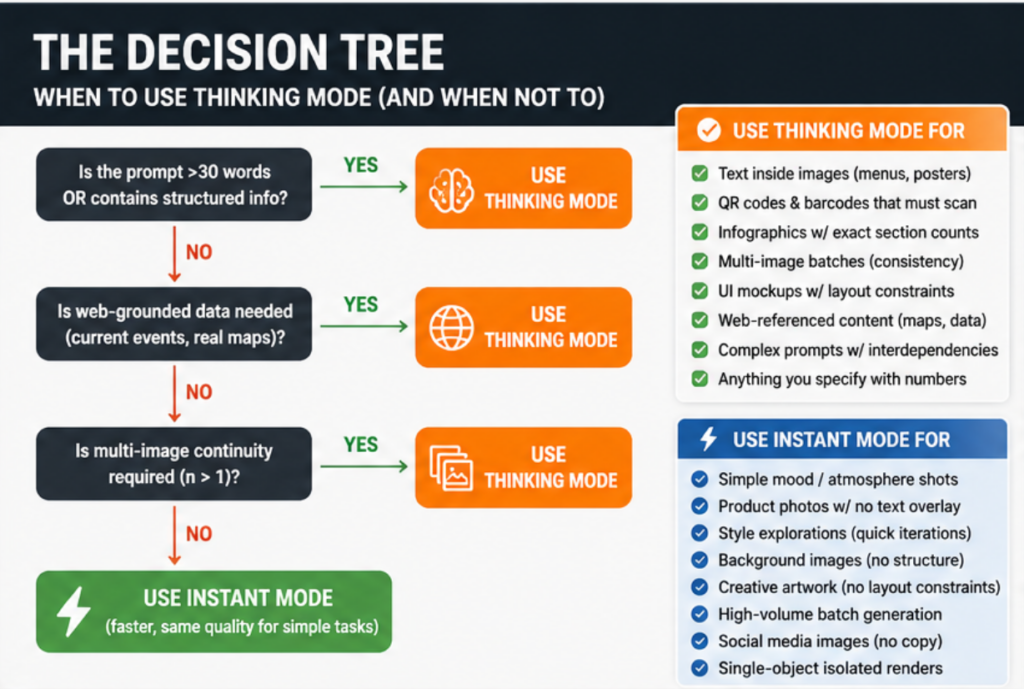 The Decision Tree: When to Use Thinking Mode (And When Not To)
This is the part most guides skip. The answer isn’t “always use Thinking Mode” — it’s knowing which tasks actually need it.
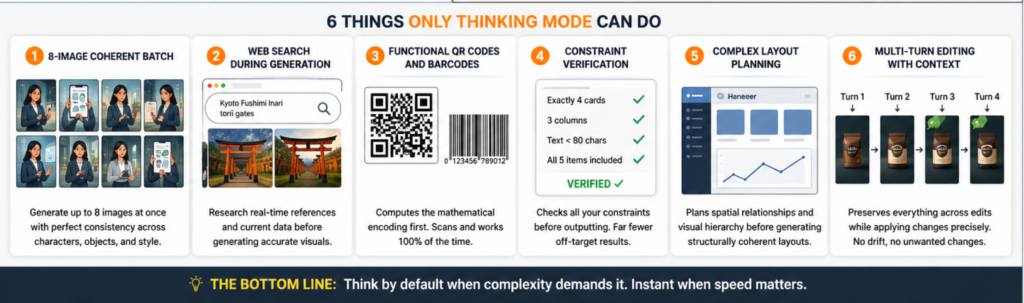 6 Things Only Thinking Mode Can Do
These aren’t “better in Thinking Mode.” They’re only possible in Thinking Mode.
With Thinking Mode enabled, ChatGPT Images 2.0 can generate up to eight images at once from a single prompt. Characters, objects, and styles stay consistent across all scenes. OpenAI cites manga pages, social media graphic series, and room design plans as example use cases.
Create 8 Instagram carousel slides for a productivity app launch.
Slide 1: Hero (“Work Smarter”) · Slides 2-7: One feature each
· Slide 8: CTA. Consistent character: professional woman, 30s,
dark hair. Same brand colors throughout: navy #1a2e4a + orange #f97316.
Same font treatment. Each slide should work standalone AND as a series.
The model “thinks” before it generates, spending more or less time reasoning depending on the selected mode, and can even search the web during that process. This enables reference-accurate generation — if you ask for a poster featuring a real city’s skyline, a current product, or up-to-date brand assets, Thinking Mode can pull visual reference from the web first.
“Create a tourism poster for Kyoto featuring the iconic torii gates
at Fushimi Inari — research the actual color and design.”
“Design a marketing banner for the 2026 Paris Marathon —
include accurate race details and route reference.”
The reasoning pass computes the mathematical encoding before rendering. Without Thinking Mode, the model draws something that looks like a QR code. With it, the model solves the Reed-Solomon error-correcting code first, then renders the result as pixels. Instant Mode cannot do this — it pattern-matches the visual without computing the underlying data structure.
Thinking Mode checks your constraints before generating, which significantly reduces the number of “off-target” results. Tell the model “exactly 3 sections, not 2, not 4” and it will check that before finalizing the output. In Instant Mode, the model does its best but doesn’t self-verify.
“Exactly 4 cards, not 3, not 5. Verify before outputting.”
“Total text must be under 80 characters across the full image.”
“Three columns, equal width. Check column count before finalizing.”
“All five items from this list must appear, labeled correctly.”
Before generating, the model plans spatial relationships: what goes where, how elements relate to each other, what visual hierarchy serves the prompt’s intent. For dashboards, infographics, and multi-panel layouts, this reasoning step produces structurally coherent results that Instant Mode gets wrong more than half the time.
System architecture diagram with 3 tiers and labeled components
Dashboard with sidebar nav, header, 4 KPI cards, 1 chart
Before/after comparison layout with shared header
Product comparison table: 3 products × 5 features
You can generate an image, then ask ChatGPT to modify specific elements — “change the background to sunset,” “remove the person on the left,” “make the text larger” — and it will preserve everything else while applying your changes. In Thinking Mode, the model holds the full context of all previous edits and reasons about what to preserve versus change. In Instant Mode, edits tend to drift — change one element and others shift subtly.
Turn 1: “Create a product label for a coffee brand. Dark roast.”
Turn 2: “Change the background from black to deep forest green.”
Turn 3: “Add a small mountain illustration to the top right corner.”
Turn 4: “Make the brand name 20% larger. Keep everything else.”
The Verification Tag
Add “Verify all constraints before generating” at the end of any structured prompt. The reasoning pass will explicitly check that every requirement is met before finalizing. Dramatically reduces retry rate for complex layouts.
The Explicit Prohibition
Add “not X, not Y” to exact count requirements. The reasoning pass reads this as a hard constraint. “Exactly 3 sections — not 2, not 4” is significantly more reliable than just “3 sections.”
The Completeness Check
For prompts with a specific item list, end with “All [N] items must appear and be clearly distinguishable.” The self-check pass will verify the list before output.
The Research Instruction
Explicitly instruct the model to search for reference material when accuracy to real-world subjects matters.
Thinking Mode’s additional reasoning steps cost tokens — on top of image generation tokens. For the API, this adds up fast:
At larger resolutions, GPT Image 2 is actually cheaper than its predecessors: 1024×1536 at high quality costs $0.165, compared to $0.20 for GPT Image 1.5. At standard 1024×1024 in high quality, however, the new model is more expensive at $0.211 versus $0.133 for GPT Image 1.5. Build cost checks into any automated workflow before deploying Thinking Mode at scale.
What use case unlocked for you once you started using Thinking Mode properly? Drop it in the comments.
📈 모델 비교가 궁금하다면: GPT Image 2 vs Nano Banana 2 — 같은 프롬프트로 비교한 실제 결과