How to Use Nano Banana 2 100% Free (Secret Tip Using Google Search!)
If you’ve been using standard AI image generators, you probably know the frustration: you spend time crafting the perfect prompt, hit generate, and… you get one single image. If it’s not exactly what you wanted, you have to tweak your words and try again, slowly burning through your daily credits or subscription limits.
But what if you could generate four high-quality, photorealistic variations at the exact same time—without spending a single dime? Welcome to Google Labs Flow. Powered by the new Nano Banana 2 model, this tool allows you to batch-create stunning visuals for exactly 0 credits. Whether you need ultra-realistic skincare models or content for your next campaign, here is how to set it up in seconds.
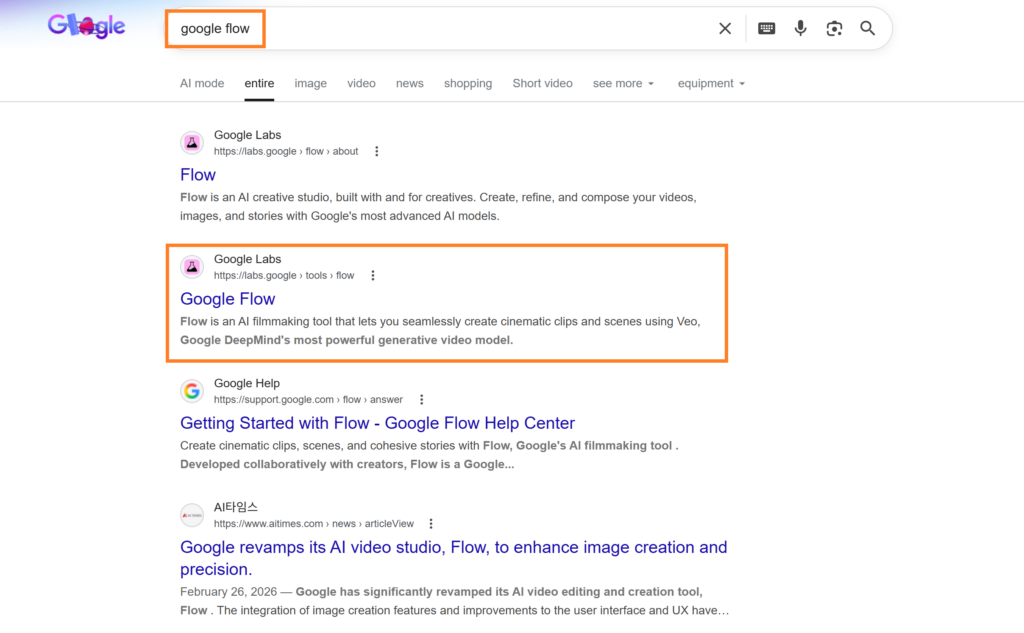
Step 1: Find Google Flow.
First, open your browser and search for “Google Flow” on Google. Find the Google Labs-related item in the search results and click on it.
Step 2: Agree to the Terms and Conditions
If this is your first time visiting Google Labs, you may see a few pop-up screens. Don’t worry—this is normal! Simply check the box to agree to the Terms and Conditions, review the Privacy Policy, and click “Continue.”
Step 3: Connect to your Flow workspace.
Next, you’ll see a fun dashboard that says, “Create whatever you want.” It features a variety of colored blocks. Click on the light blue one labeled “Flow.” This is your golden ticket!
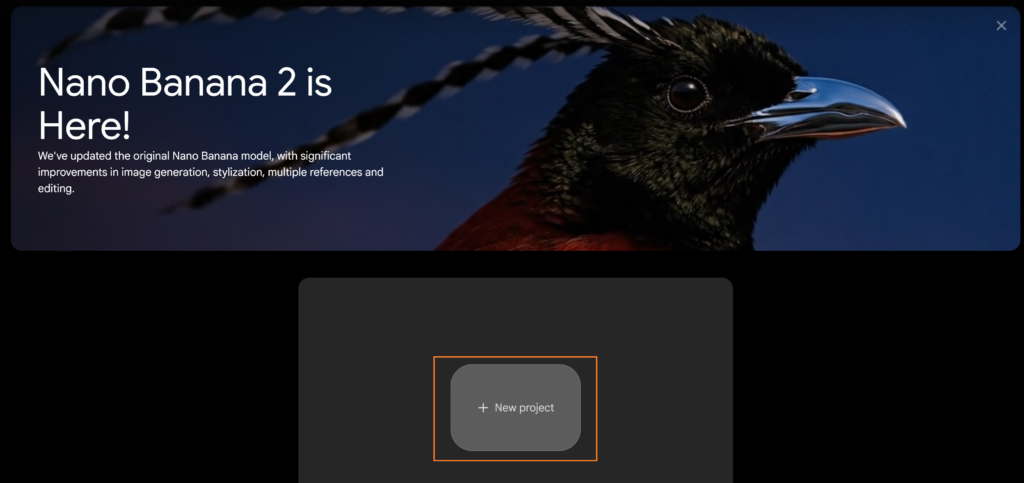
Step 4: Start a New Project
Once you’re in the Flow interface, click “New Project” in the center of the screen.
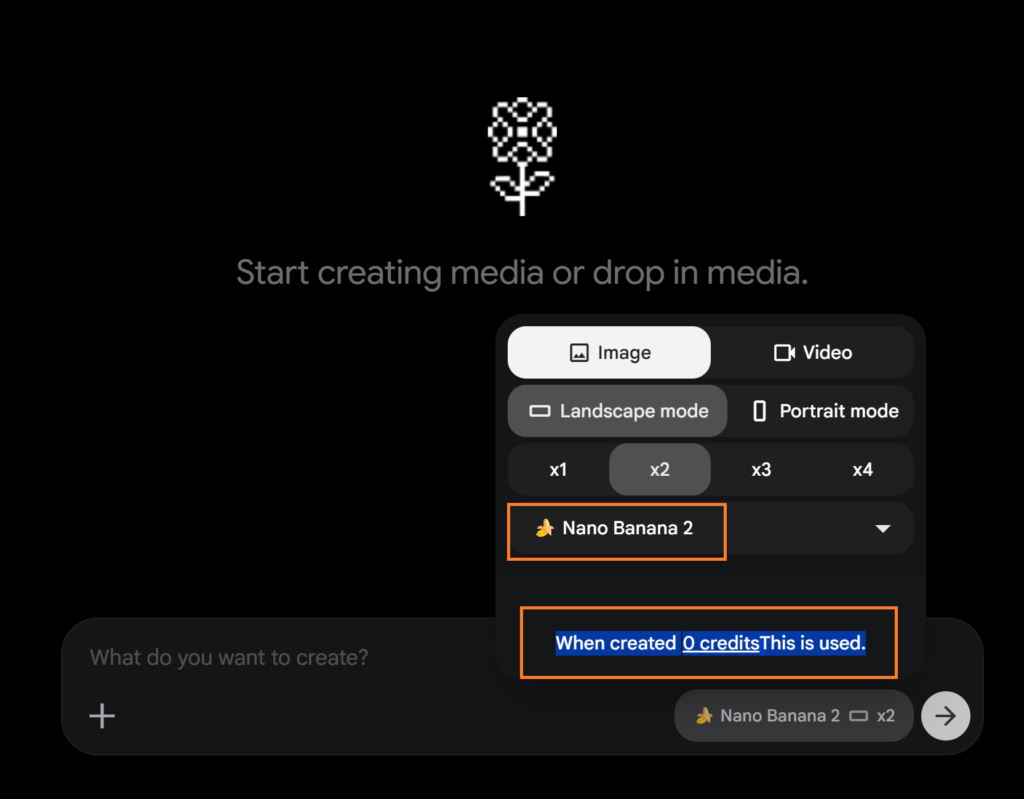
This image displays the interface of an AI media generation tool configured to create landscape images using the “Nano Banana 2” model.
The highlighted text emphasizes that generating this specific media will currently cost zero credits.
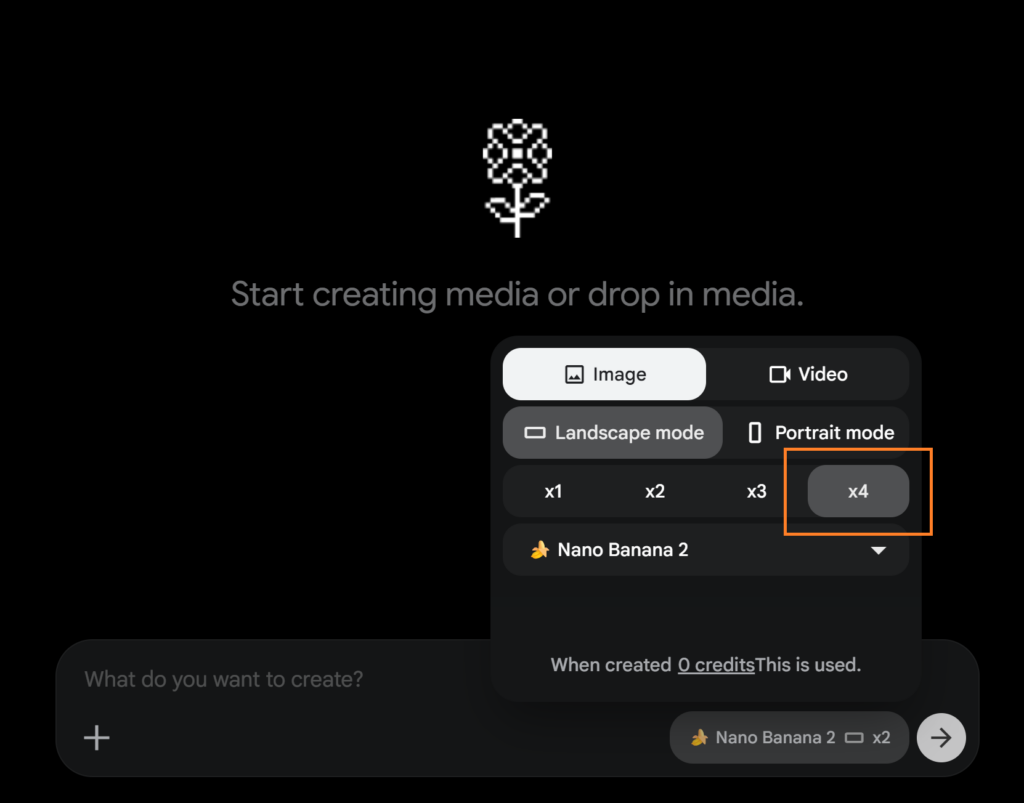
Unlike Gemini or Google AI Studio, where you’re usually limited to making just one image at a time, Flow allows you to generate up to four images simultaneously. And yes, it’s completely free. Let’s dive into exactly how to use it step-by-step.
🚨 Little pitfalls you should know about 🚨
Before you start creating your masterpiece, there’s one small limitation you should be aware of. When using Nano Banana 2 for free in Flow, you can only create images with an aspect ratio of 16:9 (landscape) or 9:16 (portrait) . Keep this in mind when planning your visuals!
Frankly, this minor drawback is far outweighed by the benefits. While typical platforms can only produce one image at a time, Flow can produce up to four images simultaneously!
Let’s work some magic! 🪄
Now that everything’s set up, let’s get to the fun part. I’ll show you in detail how I use this method to create amazingly realistic images…
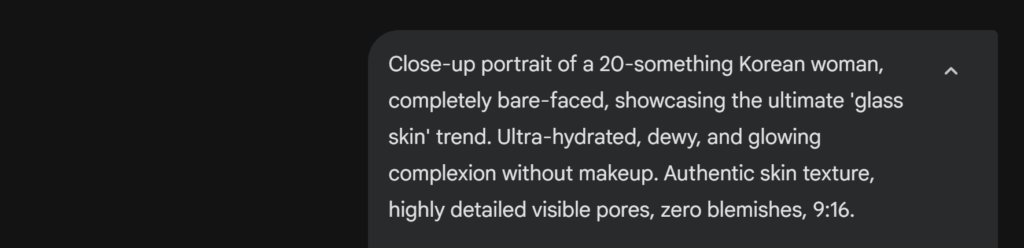
Step 1: Entering the Basic Prompt
First, enter your highly detailed text prompt into the input box. We’re using the “glass skin” K-beauty prompt we created earlier to define the exact look and texture we want.
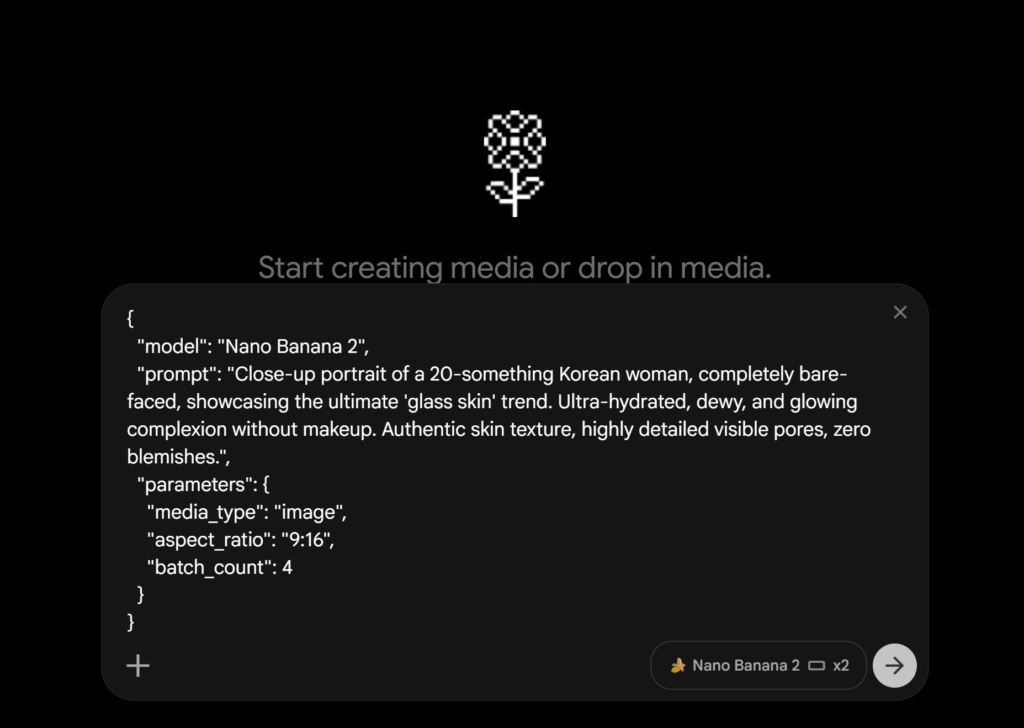
Step 2: Using the JSON Setup
For a more advanced setup, you can drop in a structured JSON prompt. This automatically configures the model to “Nano Banana 2,” sets the aspect ratio to 9:16, and tells Flow to generate 4 images at once—all for 0 credits.
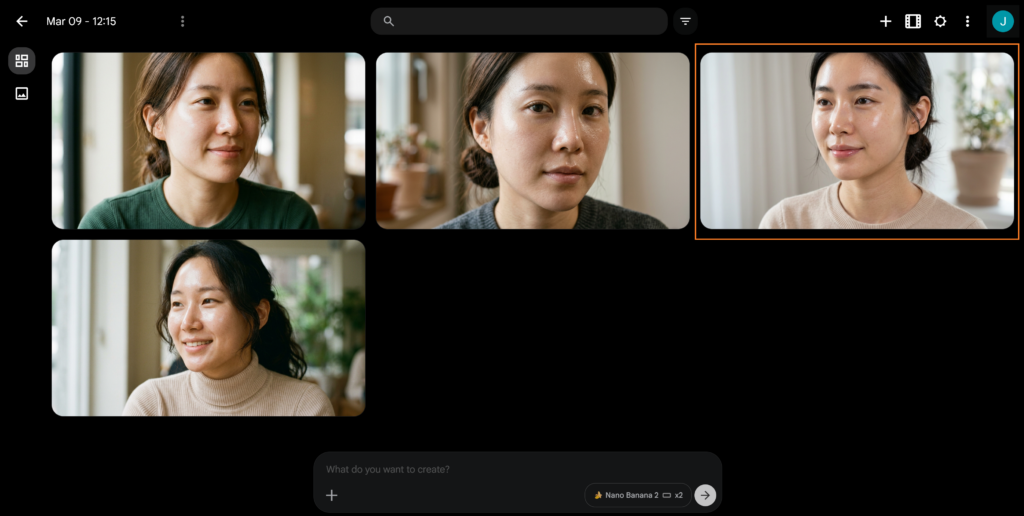
Step 3: Batch Generation Results
Within seconds, Flow generates four different high-quality variations simultaneously. You don’t have to wait for them one by one. Just pick your favorite variation from the grid to edit further.
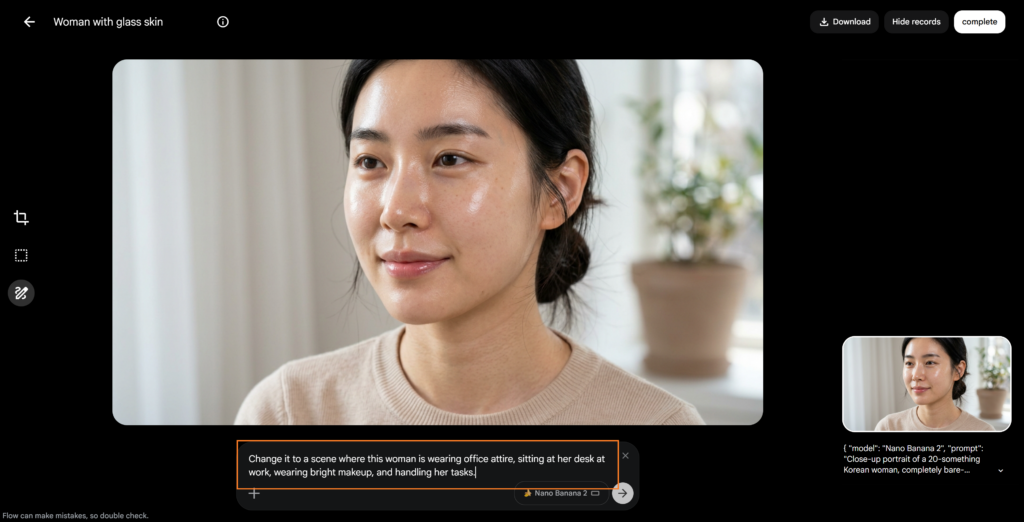
Step 4: Changing the Scene and Outfit
Once you select an image, you can use the generative edit feature. Here, we entered a new prompt to completely change the context: switching her outfit to office attire and placing her at a desk in a workspace.
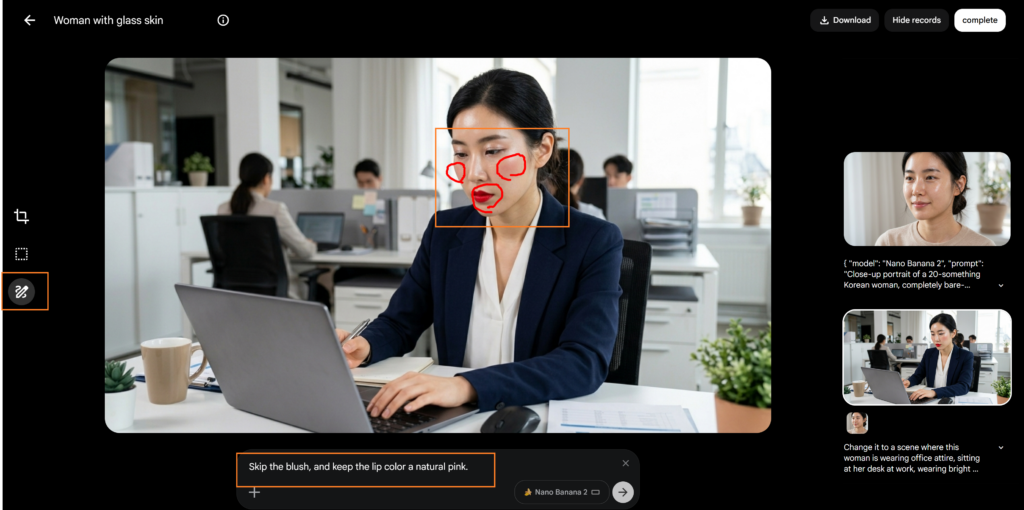
Step 5: Fine-tuning Details with the Masking Tool
You can also use the masking or selection tool to pinpoint specific areas. In this step, we highlighted her face and asked the AI to tweak the makeup—specifically requesting it to “skip the blush, and keep the lip color a natural pink.”
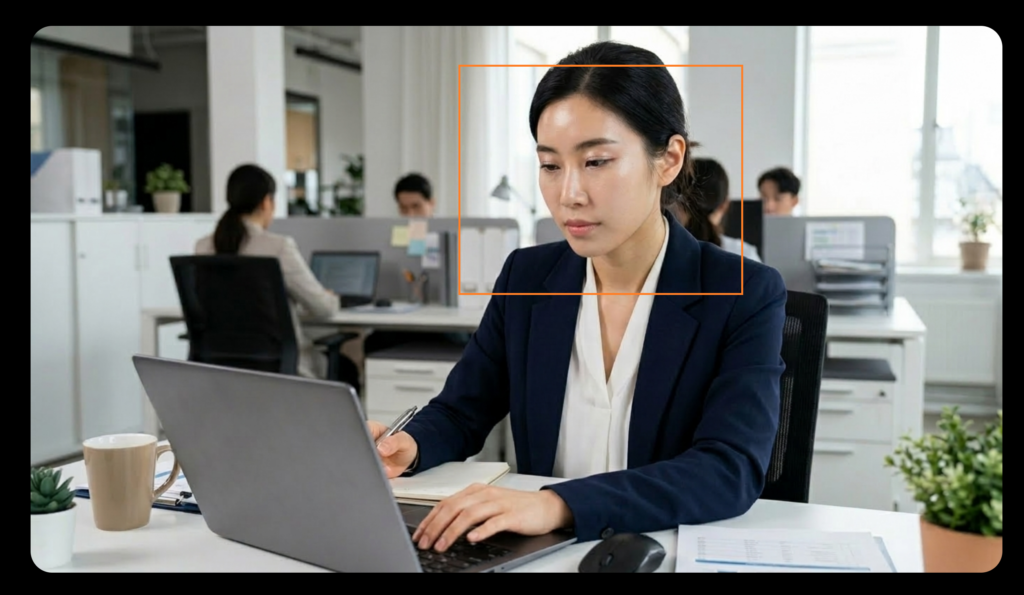
Step 6: The Final Edited Output
And here is the final result! The AI seamlessly integrated all the edits. The original model is now sitting in a realistic office environment with professional attire and the exact natural makeup look we requested.
The best part about this tool being completely free is that you don’t have to stress over getting the perfect prompt on the first try. You can generate, tweak, and edit as many variations as you want without worrying about burning through expensive credits.
Ready to build your own stunning visuals? Jump into Flow and start creating your batch of 4 images right now!
✨ Start Creating for Free on Flow
No credit card required. 0 credits per generation.


