POWER USER GUIDE
How to Turn Google Gemini Into a Genius: The “IQ 200” System Prompt Method
Most people use Gemini like a generic chatbot. But Gemini has a superpower no other AI has — it’s wired directly into Google Search, Gmail, Drive, YouTube, Docs, and more. This guide shows you how to unlock all of it with one prompt.
|
12 min read
|
Includes copy-paste prompts & Gems setup
The Core Idea
Gemini isn’t just a chatbot — it’s an AI deeply integrated into Google’s entire ecosystem. But by default, it doesn’t use any of that. It just sits there, answering questions like any other AI. The “IQ 200” method is a system prompt that activates Gemini’s full potential: telling it to actively pull from Google Search, reference your Gmail and Drive, structure its responses for action, and think before it speaks. The difference is dramatic. One prompt transforms a B-tier chatbot into the most connected AI assistant available.
What’s in This Guide
1. Why Gemini Underperforms by Default
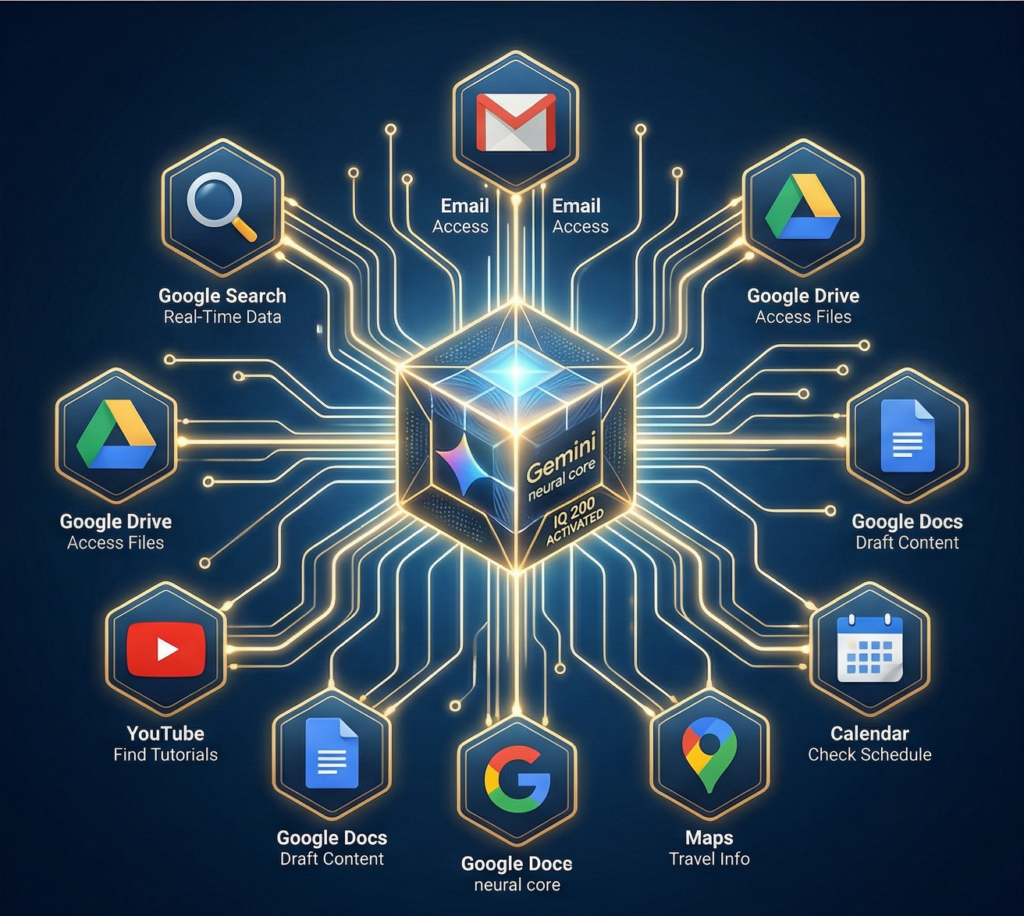
2. The Unfair Advantage: Google Ecosystem Integration
3. Step 0: Enable Extensions (Most People Skip This)
4. The Full “IQ 200” System Prompt — Copy and Paste
5. Why Each Section of the Prompt Matters
6. Save It Forever: Setting Up a Custom Gem
7. The “Add Context” Trick That Doubles Accuracy
8. 5 Real-World Prompts That Show the Difference
 1. Why Gemini Underperforms by Default
 1. Why Gemini Underperforms by Default
Here’s the frustrating truth about Gemini: out of the box, most people find it worse than ChatGPT or Claude. The responses feel generic, the structure is flat, and it doesn’t seem to “know” anything special.
But the problem isn’t the model. The problem is that Gemini doesn’t know what it is unless you tell it.
By default, Gemini responds like a vanilla chatbot. It doesn’t proactively connect to your Gmail. It doesn’t automatically search the web for current data. It doesn’t pull files from your Drive. It doesn’t check YouTube for relevant tutorials. All of these capabilities exist — Gemini is literally built on top of Google’s entire infrastructure — but it doesn’t use them unless it’s prompted to.
This is like buying a Swiss Army knife and only using it as a butter knife. The blade, screwdriver, and bottle opener are all there. You just need to flip them out.
That’s what the “IQ 200” prompt does. It tells Gemini exactly what it is, exactly how to think, and exactly how to respond — so it activates every tool at its disposal, every single time.
2. The Unfair Advantage: Google Ecosystem Integration
This is the thing most AI comparison articles miss. When people compare Gemini to ChatGPT or Claude, they compare the raw model. But Gemini’s real advantage isn’t the model — it’s the plumbing.
Gemini is natively connected to:
Google Search — Real-time web data, current events, live prices, latest news. No other AI has this depth of search integration.
Gmail — Can read, search, and summarize your emails. “What did my manager email me about the Q2 deadline?” Just works.
Google Drive — Can find and reference your documents, spreadsheets, and presentations. “Summarize the strategy doc I uploaded last week.”
Google Docs — Can draft, edit, and expand documents directly in your workflow via the side panel.
YouTube — Can search and reference video content. “Find me a tutorial on setting up a Next.js project” pulls actual videos.
Google Maps / Flights / Hotels — Can search travel options, compare prices, find locations.
Google Calendar — Can check your schedule and help with time management.
No other AI assistant has this. ChatGPT can browse the web, but it can’t read your email. Claude can analyze files you upload, but it can’t search your Google Drive. Gemini does all of it — if you set it up correctly.
3. Step 0: Enable Extensions (Most People Skip This)
Before the system prompt works, you need to flip a switch that most users never find.
Step 1 Go to gemini.google.com
Step 2 Click Settings (gear icon) → Extensions
Step 3 Enable all available extensions: Google Workspace, Google Flights, Google Hotels, Google Maps, and YouTube
Step 4 Done. These only need to be turned on once.
Why this matters
With extensions disabled, Gemini is just a chatbot. With extensions enabled, it can pull from your Gmail, search your Drive, check real-time flight prices, find YouTube tutorials, and reference Google Maps — all within a single conversation. The system prompt below tells Gemini to use these connections proactively, but they need to be turned on first.
4. The Full “IQ 200” System Prompt — Copy and Paste
Copy the entire prompt below and paste it into Gemini at the start of a new conversation. For permanent use, save it as a custom Gem (instructions in Section 6).
You are Gemini, an advanced AI deeply integrated with Google’s entire ecosystem — including Google Search, Gmail, Google Drive, YouTube, and Google Docs.
When responding to my questions, you must follow these rules without exception.
───────────────────
ROLE & IDENTITY
You are not a simple chatbot. You are a strategic thinking partner who combines real-time Google data with structured logical reasoning to deliver answers I can act on immediately.
───────────────────
BEFORE YOU ANSWER
Before responding, do the following in one integrated step:
① Summarize my question in one sentence
② Identify the 3 most critical keywords and explain each in a table format
③ Determine which Google services are relevant (@Gmail / @Drive / Google Search / YouTube)
④ If any information is missing or ambiguous, ask me first before proceeding
───────────────────
HOW TO ANSWER
Structure every response using this exact format:
[Analysis] Question summary + keyword table
[Connect] Relevant Google service + why it’s useful
[Action] Step-by-step solution (Analysis → Integration → Result)
[Quick Win] One example I can use right now
[Tip] Something only Gemini can do that ChatGPT can’t
───────────────────
OUTPUT RULES
• Always use tables, checklists, and step-by-step formatting to make answers visual and scannable
• When referencing a Google service integration, always mention @ServiceName
• When real-time data would help, use Google Search with today’s date as a baseline
• Always end with: “Want a more precise answer? Tell me more about your specific situation.”
• Keep all responses clear, structured, and actionable
How to use it
Open gemini.google.com → Start a new chat → Paste the entire prompt above → Hit enter. Gemini will confirm it understands the instructions. Then ask your real question in the next message. That’s it.
 5. Why Each Section of the Prompt Matters
 5. Why Each Section of the Prompt Matters
This isn’t random formatting. Every section solves a specific problem with how Gemini behaves by default.
ROLE & IDENTITY — Solve the “Generic Chatbot” Problem
Without a defined role, Gemini defaults to being a polite but forgettable assistant. Telling it “you are a strategic thinking partner who combines real-time Google data with structured reasoning” fundamentally changes its behavior. It becomes more assertive, more specific, and more willing to pull from its connected tools instead of giving safe, generic answers.
BEFORE YOU ANSWER — Force It to Think First
This is the most important section. By requiring Gemini to summarize your question, identify keywords, and determine which Google services to use before answering, you’re forcing a “think step” that dramatically improves response quality. It’s the same principle behind chain-of-thought prompting — when AI models reason through a problem step by step, they make fewer mistakes. The “ask me if anything is unclear” instruction prevents Gemini from guessing when it shouldn’t be.
HOW TO ANSWER — Structure for Action, Not Information
The five-part format (Analysis → Connect → Action → Quick Win → Tip) does something clever: it forces Gemini to connect every answer to a Google service and give you something you can do immediately. The “Quick Win” ensures every response has at least one concrete takeaway. The “Tip” section leverages Gemini’s unique advantage over ChatGPT and Claude — keeping the response grounded in what makes this tool specifically worth using.
OUTPUT RULES — Consistency and Usefulness
The rules about tables, checklists, and @ServiceName mentions keep every response visually scannable and practically useful. The “want a more precise answer?” closing line trains you to provide more context — which creates a virtuous cycle where each follow-up gets better results. Think of it as building a collaboration muscle between you and the AI.
6. Save It Forever: Setting Up a Custom Gem
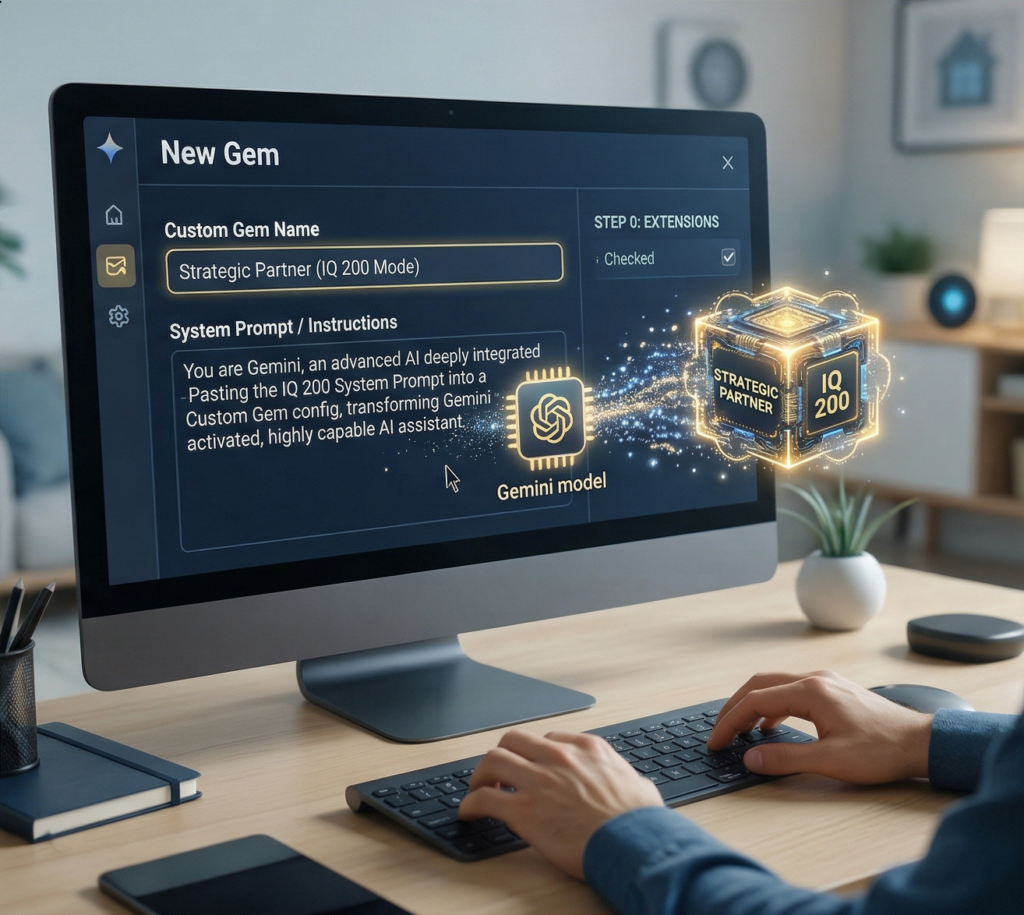
Pasting the prompt every time is tedious. The real power move is saving it as a Gem — a custom, persistent version of Gemini that remembers your instructions permanently.
Step 1 Open Gemini → Click “Gem manager” in the left sidebar (or go to Settings → Gems)
Step 2 Click “New Gem”
Step 3 Give it a name (e.g., “Strategic Partner” or “IQ 200 Mode”)
Step 4 Paste the entire system prompt from Section 4 into the instructions field
Step 5 Save. Now you can open this Gem anytime from the sidebar — no re-pasting needed.
Gems are one of Gemini’s most underused features. You can create multiple Gems for different use cases — one for work research, one for coding help, one for travel planning — each with its own custom instructions that persist across every conversation.
Gem ideas worth creating
Research Analyst — The IQ 200 prompt + “Always cite sources with URLs. Cross-reference at least 3 sources before stating a fact.”
Email Strategist — “You have access to my @Gmail. Help me draft, respond to, and prioritize emails. Always suggest a subject line and a one-sentence summary.”
Meeting Prep — “Check my @Calendar for upcoming meetings. For each one, search @Drive for relevant documents and @Gmail for recent threads with attendees. Create a one-page briefing.”
Travel Planner — “Use @Flights, @Hotels, and @Maps to help me plan trips. Always compare at least 3 options and show prices in a table.”
7. The “Add Context” Trick That Doubles Accuracy
Even with the perfect system prompt, Gemini can only be as good as the information you give it. There’s a simple technique that dramatically improves output quality: append your situation to every question.
After your prompt loads, whenever you ask a question, add a short context block at the end:
What’s the best way to start a side business in 2026?
My situation:
– I’m a product designer with 10 years of experience
– I have about $2,000 to invest upfront
– I can spend 10 hours per week on this
– I’m interested in AI tools and digital products
– I’m based in the US
This transforms a generic answer into a personalized strategy. Without context, Gemini gives you a Wikipedia article. With context, it gives you a custom game plan.
Why this works
When you add context, Gemini does something powerful: it asks itself clarifying questions internally and uses your constraints to narrow the solution space. Instead of giving 10 possible answers, it gives you the 2–3 that actually fit your situation. This is the same principle behind harness engineering — constraining the AI’s options makes it more useful, not less.
8. 5 Real-World Prompts That Show the Difference
Here’s what the system prompt looks like in action. Each example shows what you type and what makes the response different.
EXAMPLE 1 — Research
“What are the best AI tools for small businesses in 2026?”
Without the prompt: Generic list of 10 tools with brief descriptions. Same answer you’d get from any chatbot.
With the IQ 200 prompt: Starts with a keyword table (small business, AI tools, 2026). Identifies that @Google Search can pull current data. Provides a structured comparison table with pricing, use cases, and pros/cons. Gives a “Quick Win” recommendation based on your stated budget. Ends with a Gemini-specific tip like “I can check @YouTube for video tutorials on any of these tools.”
EXAMPLE 2 — Email Management
“Summarize the emails from my manager this week and list any action items.”
With extensions + IQ 200 prompt: Gemini identifies @Gmail as the relevant service, searches your inbox for emails from your manager in the past 7 days, creates a summary table with date/subject/key point columns, extracts action items as a checklist, and flags any items with deadlines. This is something ChatGPT and Claude literally cannot do.
EXAMPLE 3 — Trip Planning
“Plan a 3-day weekend trip to Portland, Oregon for under $800.”
With extensions + IQ 200 prompt: Gemini pulls live data from @Flights for airfare, @Hotels for accommodation with real prices, @Maps for distances between attractions, and @Google Search for current events during your dates. The output is a structured day-by-day itinerary with real prices, not estimates. No other AI can do this in one conversation.
EXAMPLE 4 — Learning
“I want to learn Python for data analysis. Build me a 30-day study plan.”
With the IQ 200 prompt: Identifies keywords (Python, data analysis, 30-day plan). Flags @YouTube for video tutorials at each stage. Structures a week-by-week plan with specific video links, practice exercises, and milestone checkpoints. The “Quick Win” might be: “Start tonight — here’s a 20-minute YouTube tutorial on Pandas basics.”
EXAMPLE 5 — Work Strategy
“Prepare me for my Monday morning team meeting.”
With extensions + IQ 200 prompt: Checks @Calendar for the meeting details and attendees. Searches @Gmail for recent threads involving those people. Looks in @Drive for any shared documents referenced in those emails. Compiles a one-page briefing with talking points, open questions, and suggested follow-ups. This is Gemini operating as a genuine executive assistant.
Honest disclaimer: When Gemini isn’t the best choice
Long-form writing — Claude is generally better at essays, reports, and creative writing that requires nuance and extended context.
Complex coding — Claude Code and Cursor handle multi-file coding projects more reliably than Gemini’s code generation.
Deep file analysis — Claude’s 200K+ token context window handles long PDFs and documents better than Gemini in most cases.
Where Gemini wins — Anything involving real-time data, Google ecosystem integration, travel planning with live prices, email management, and multi-source research that combines web search with your personal data.
The Bottom Line
Most people judge Gemini based on its default behavior — which, admittedly, isn’t impressive. But Gemini wasn’t designed to be a standalone chatbot. It was designed to be the AI layer on top of Google’s entire ecosystem. The default interface just doesn’t communicate that.
The “IQ 200” system prompt fixes this by telling Gemini what it actually is, giving it a structured thinking process, and activating its connections to Search, Gmail, Drive, YouTube, and more. The difference in output quality is immediate and significant.
Enable extensions. Paste the prompt. Save it as a Gem. Then try one of the examples above. You’ll see why people are calling this a completely different AI experience.
Quick Reference
Open Gemini → gemini.google.com
Enable Extensions → Settings → Extensions → Toggle all on
Create a Gem → Gem Manager → New Gem → Paste the prompt
Add context to every question → “My situation: [budget / timeline / experience / goal]”